Redesigned Sidebar
This is an experimental feature. That means we're still working on finishing it. There may be bugs, missing functionality or incomplete documentation, and we may decide to remove the feature in a future release. If you have any feedback, please comment on the dedicated feedback issue.
The redesigned sidebar replaces the navigation panel on the left of the screen. It's based on the winning entry from the sidenav design competition and adds:
- Account groups, such as "Checking", "Savings" or "Retirement"
- Drag and drop reordering of accounts and groups
- Account search
- Collapsible sections and groups
- Bank sync status for each account
Turning On the Redesigned Sidebar
The redesigned sidebar is an experimental feature, so it's switched off until you enable it:
- Open Settings from the sidebar.
- Click Show advanced settings.
- Open Experimental features and acknowledge the warning.
- Tick Redesigned sidebar.
To switch back to the classic sidebar, untick the same setting. Your account groups are not deleted.
A Quick Tour
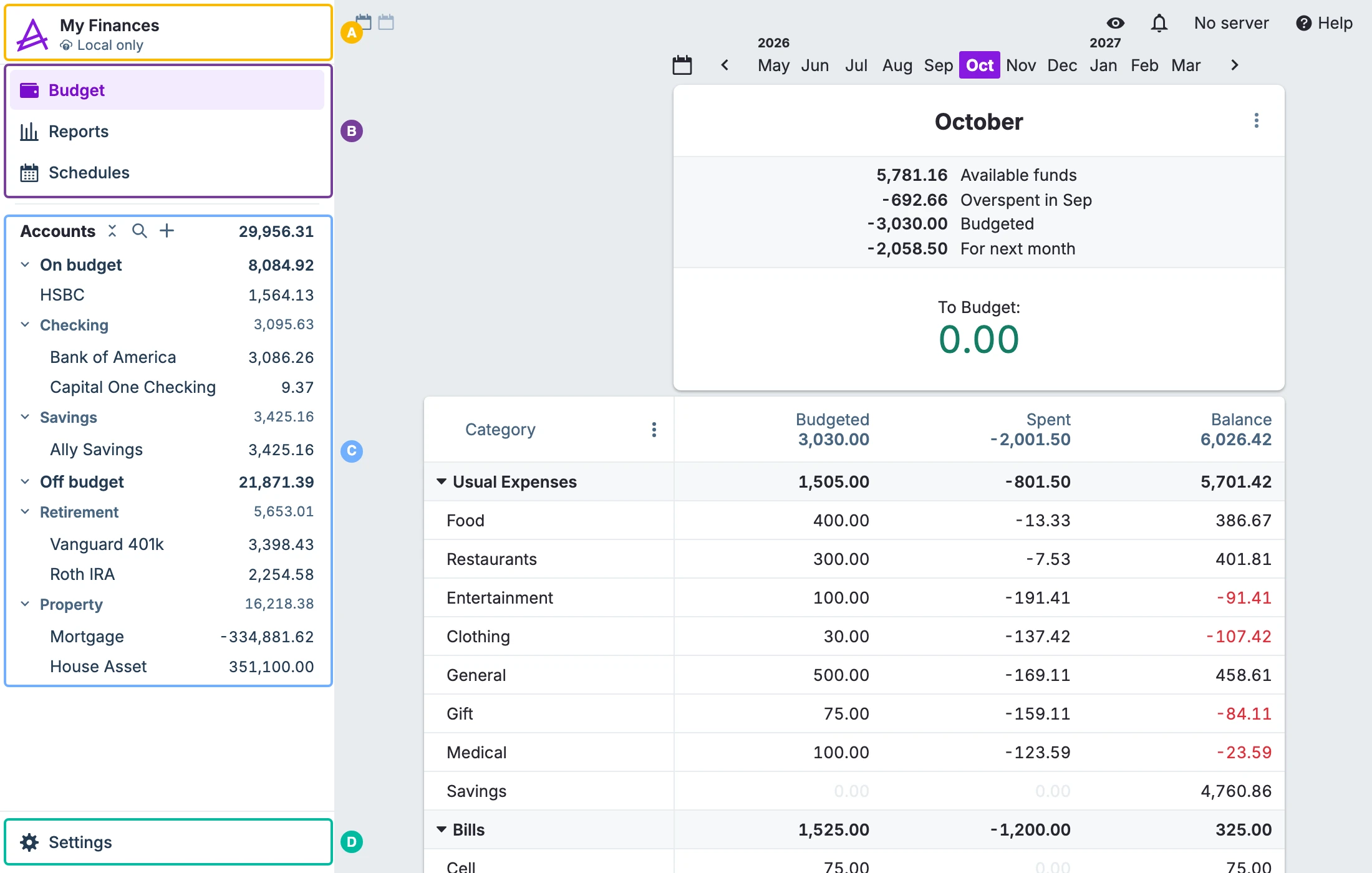
The screenshot at the top of this page is labeled with the four parts of the sidebar:
- A. Budget name and sync status. Hover over the budget name and click the pencil to rename the budget. Click the Actual logo to switch to another budget file. The line underneath tells you whether the budget is synced, syncing, offline, or kept on this device only.
- B. Navigation. Links to the Budget, Reports and Schedules pages. Payees, Rules, Tags and Bank Sync are in Settings.
- C. Accounts. Your accounts, their balances and your account groups.
- D. Settings. A shortcut to the Settings page, always at the bottom of the sidebar.
The Accounts List
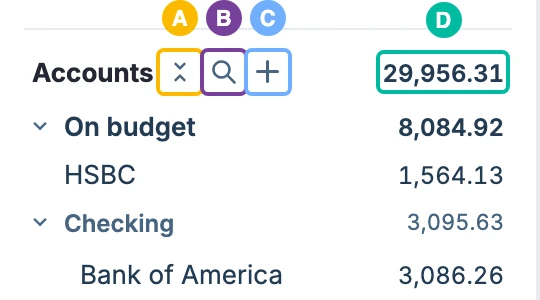
The Accounts heading has a few buttons next to it:
- A. Collapse or expand all. Folds every section and group away, or opens them all back up.
- B. Find account. Opens a search box above the list. See Finding an Account.
- C. Add account. Opens the usual dialog for adding a new account.
- D. Total balance. The balance of all your open accounts. Click it (or the Accounts heading) to see the transactions from every account together.
Below the heading, your accounts are split into sections:
- On budget and Off budget each show their own total. Click a section's name to see all of its transactions in one list.
- Inside each section, accounts that aren't in a group come first, followed by your account groups. Each group shows the combined balance of the accounts in it.
- Closed accounts are listed at the bottom. This section is collapsed by default.
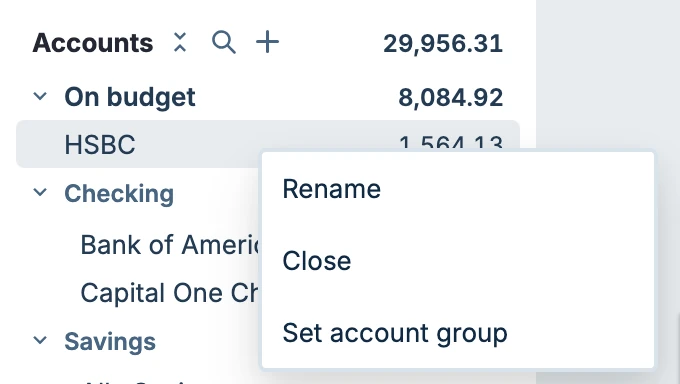
Click an account to open it. Right-click an account to rename it, close it (or reopen it, if it's already closed), or change its group.
Collapsing Sections and Groups
Click the arrow next to a section or group to collapse it. A collapsed section or group still shows its balance, along with the number of accounts in it.
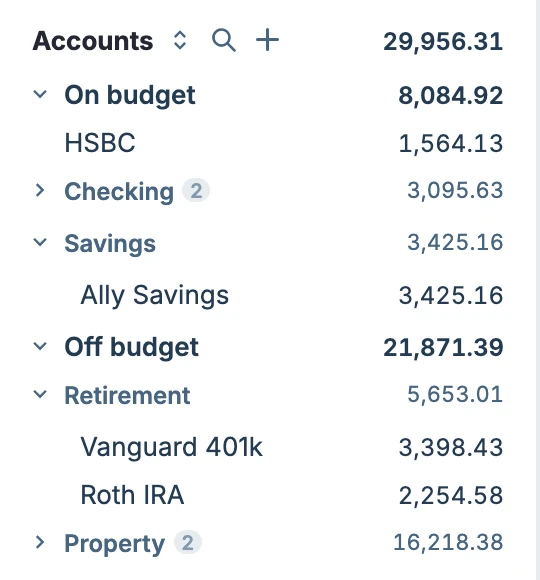
Which sections and groups are collapsed is saved separately on each device.
Organizing Accounts into Groups
Account groups list related accounts together under a name you choose, for example "Checking", "Savings" or "Retirement".
- Groups are shared between the on budget and off budget sections. If a group has both kinds of account in it, it appears in both sections, each time showing only the accounts that belong there.
- A group only appears in the sidebar once it has at least one account in it.
- Groups only change how accounts are listed. They don't affect your budget, your balances or your reports.
Adding an Account to a Group
-
Right-click the account in the sidebar and choose Set account group. You can also choose Set account group from the menu on the account's own page.
-
In the dialog that opens, click the group you want to put the account in.
-
To create a new group instead, type its name into the Find or create a group box and choose Create from the list.
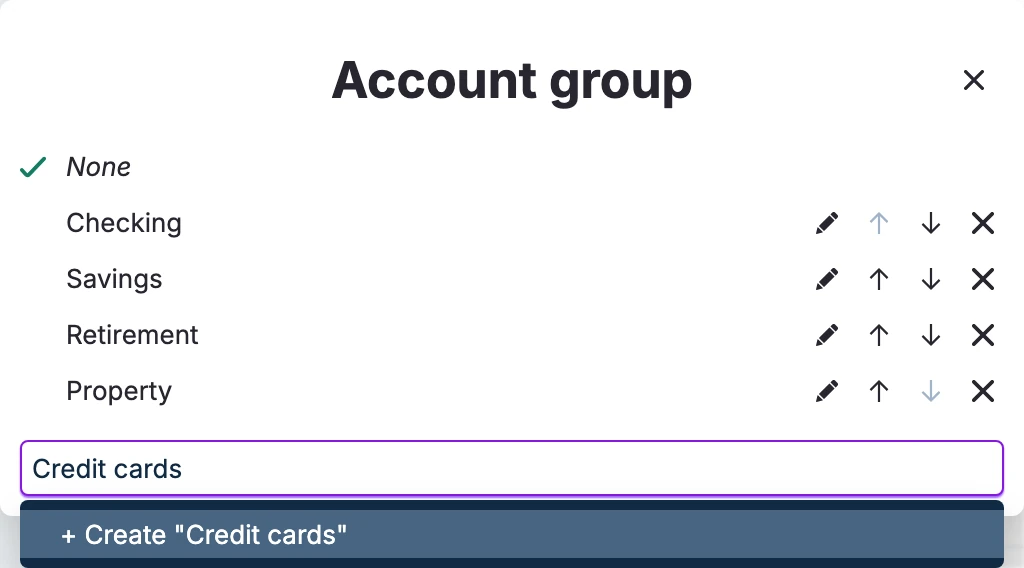
To take an account out of its group, open the same dialog and choose None. You can also drag the account to where you want it.
Managing Your Groups
The Account group dialog also lets you manage your groups:
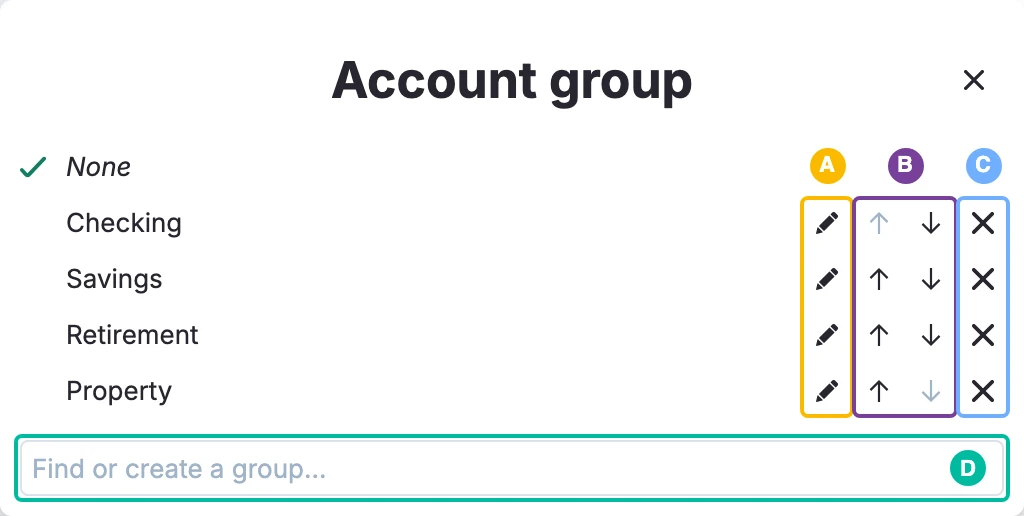
- A. Rename a group.
- B. Move a group up or down. Groups appear in the sidebar in this order.
- C. Delete a group.
- D. Find or create a group by typing its name.
You can also rename or delete a group directly from the sidebar by right-clicking its name.
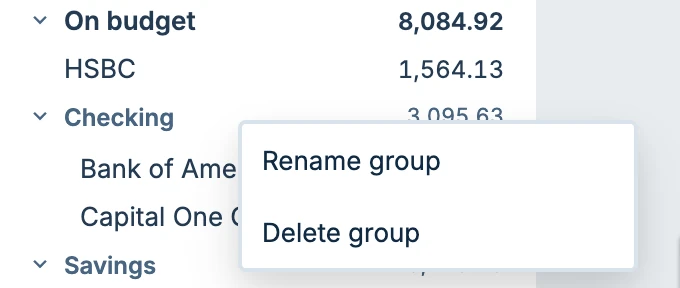
Deleting a group doesn't delete its accounts. They become ungrouped.
Rearranging Accounts and Groups
Accounts and groups can be reordered by dragging them:
- Reorder accounts by dragging an account above or below another one.
- Move an account into a group by dropping it onto the group's name, or between two accounts in that group. The group is highlighted while you drag over it.
- Take an account out of a group by dropping it among the ungrouped accounts at the top of the section.
- Reorder groups by dragging a group by its name. All groups are collapsed while a group is being dragged.
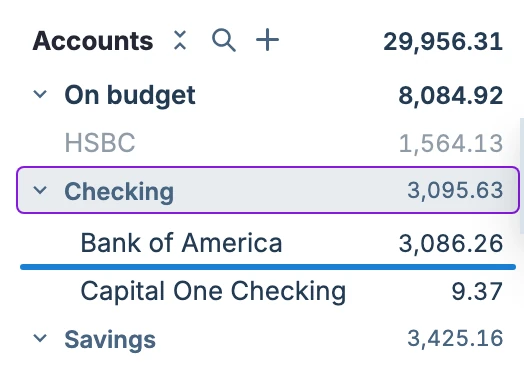
Accounts can't be dragged between the on budget, off budget and closed sections. Dragging is turned off while searching.
Accounts and groups can also be moved with the keyboard. Move the focus to an account or group, press
Finding an Account
Click the magnifying glass next to the Accounts heading and type part of an account or group name. The list shows only the matching accounts.
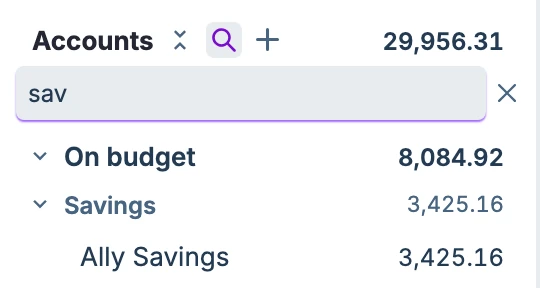
All groups are expanded while searching. Click the × at the end of the search box to close it and show the full list again.
Account Details on Hover
Hover over an account for about a second to see a card with the account's name and notes. Click the arrow next to the name to show or hide a graph of the account's balance history.
Bank Sync Status
If any of your accounts are linked to bank sync, a small dot appears in front of each account to show its sync status: synced, syncing, not linked, or a sync error.
When an account has a sync error, its group and section show a red badge with the number of accounts that need attention. The badge is also shown when the group or section is collapsed.