Balance Forecast Report
This is an experimental feature. That means we're still working on finishing it. There may be bugs, missing functionality or incomplete documentation, and we may decide to remove the feature in a future release. If you have any feedback, please comment on the dedicated feedback issue.
What it is
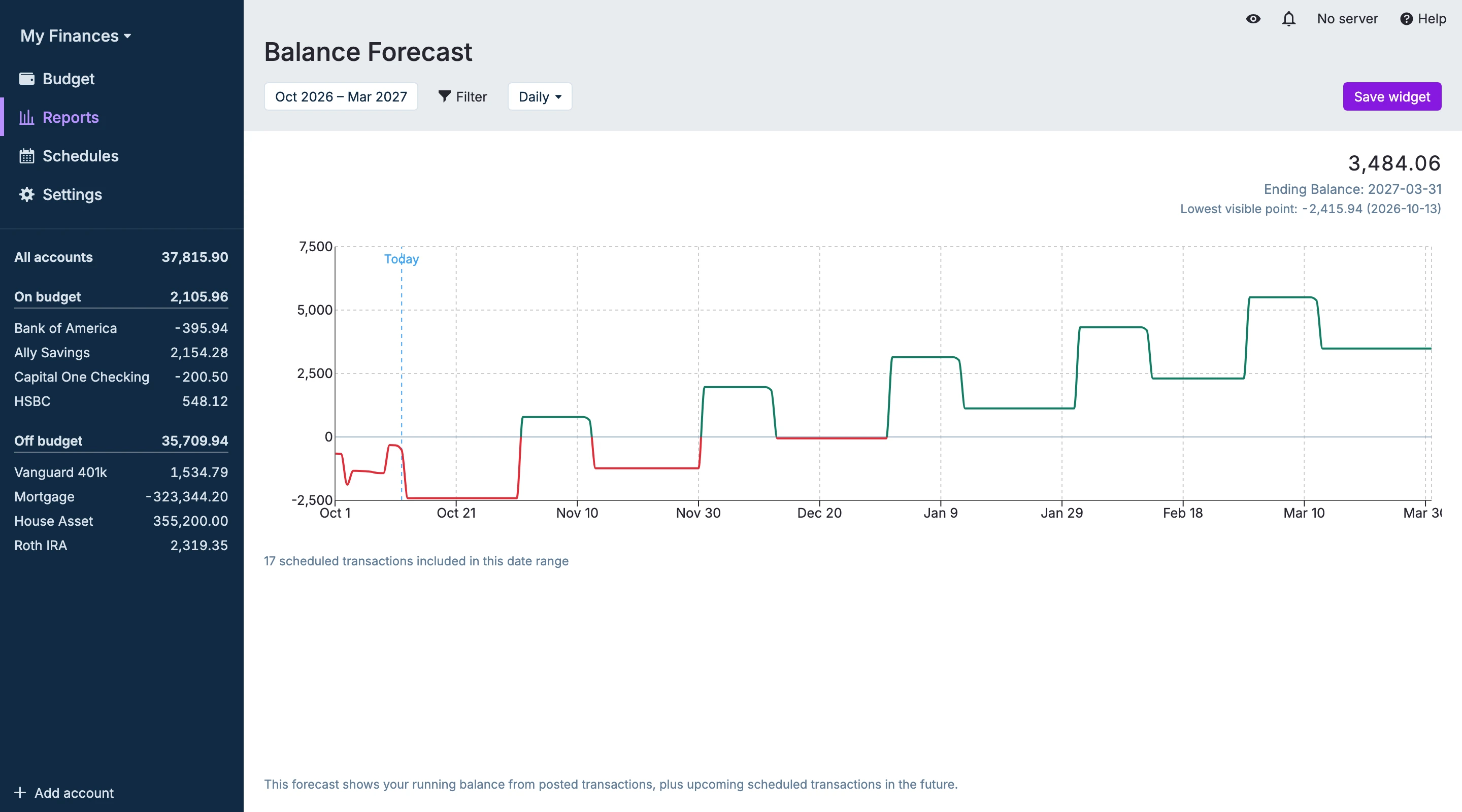
The Balance Forecast report projects future balances from posted transaction history, upcoming scheduled transactions, or Tracking Budget plans. Use it to spot possible shortfalls, compare date ranges, and see how planned income and expenses may affect your balances over time.
How balances are predicted
The report starts by resolving the selected accounts, filters, and forecast date range. It then calculates a starting balance from posted transactions before the forecast begins.
By default, Actual expands scheduled transactions into simulated occurrences up to the forecast end date. Schedule rules are applied to those simulated transactions, and transfer schedules generate matching transfer legs when both sides can be assigned to accounts.
For each forecast day, Actual updates the running balance with posted transactions on that day plus simulated scheduled transactions on that day. Monthly granularity shows the same running balance grouped by month.
Tracking Budget files can also use Tracking budget as the forecast source. This mode starts from the current on-budget balance and projects each month by adding budgeted income and subtracting budgeted expenses. It does not use schedules, account filters, or report filters, and it always uses monthly granularity.
Important information
- The forecast is only as accurate as your schedules and the assumptions they represent.
- Account filters limit the forecast to the selected accounts.
- Report filters affect which posted transactions and scheduled transactions are included.
- Tracking Budget forecasts are on-budget and non-account-specific.
- Planning beyond 12 months in Tracking Budget mode is future product scope.
- Schedules without an account can be included when forecasting the total budget balance without an explicit account filter. They cannot be assigned to a specific real account.
- Transfers are included when the forecast can resolve the relevant account information.
Display options
- Start / End: pick the forecast date range.
- Quick ranges: choose future presets from the report header.
- Granularity: switch between monthly and daily views.
- Forecast source: choose scheduled transactions, or choose Tracking Budget in Tracking Budget files.
- Filters: use the Filter button to narrow the transactions and schedules included in scheduled transaction forecasts. Filters are ignored when the forecast source is Tracking Budget.
- Save widget: save the current report settings back to the dashboard widget.
Quick troubleshooting
- Forecast looks flat: check whether the selected range is too long or whether the balance changes are small relative to the overall account balance.
- Schedules are missing: verify that the schedules are active and have enough account information for the selected account scope.
- Balance looks wrong: check account filters, report filters, transfer schedules, and whether the relevant future transactions are scheduled.
Related
- Reports index — other report types and tips.
- Schedules — manage the scheduled transactions used by the forecast.