Budget Automation
This is an experimental feature. That means we're still working on finishing it. There may be bugs, missing functionality or incomplete documentation, and we may decide to remove the feature in a future release. If you have any feedback, please comment on the dedicated feedback issue.
All functionality described here may not be available in the latest stable release. See Experimental Features for instructions to enable experimental features. Use the nightly images for the latest implementation.
Budget automations allow you to automate your budgeting step every month. With budget automations, there is no need to manually fill in each category each month. With one click you can fill in your entire budget based on the automations you have added. At the end of the month, another click can clean up what’s leftover!
Here are a few examples of what you can do, all with a single click!
- Budget $ 100 every month
- Budget $ 50 every other week
- Refill a category to $ 300 at the start of a month
- Add all leftover funds to a savings category
- Budget 10% of your income for savings or charity
- Budget the average you spend over the last 6 months
- Save up for a big purchase many months or years in the future, and let Actual dynamically figure out how much to budget every month
- And much more! Check out this blog entry from 2023! Although it was written in the early days of note templates, it's still pertinent today!
Notes Templates & UI Migration
For any given category, there is one source of truth for Budget automations, either the UI or the notes, not both.
If you have a notes template, the first time you open the UI (pie chart icon) you will be presented with migration automation(s). Click to show the original notes templates at the top of the form for comparison.
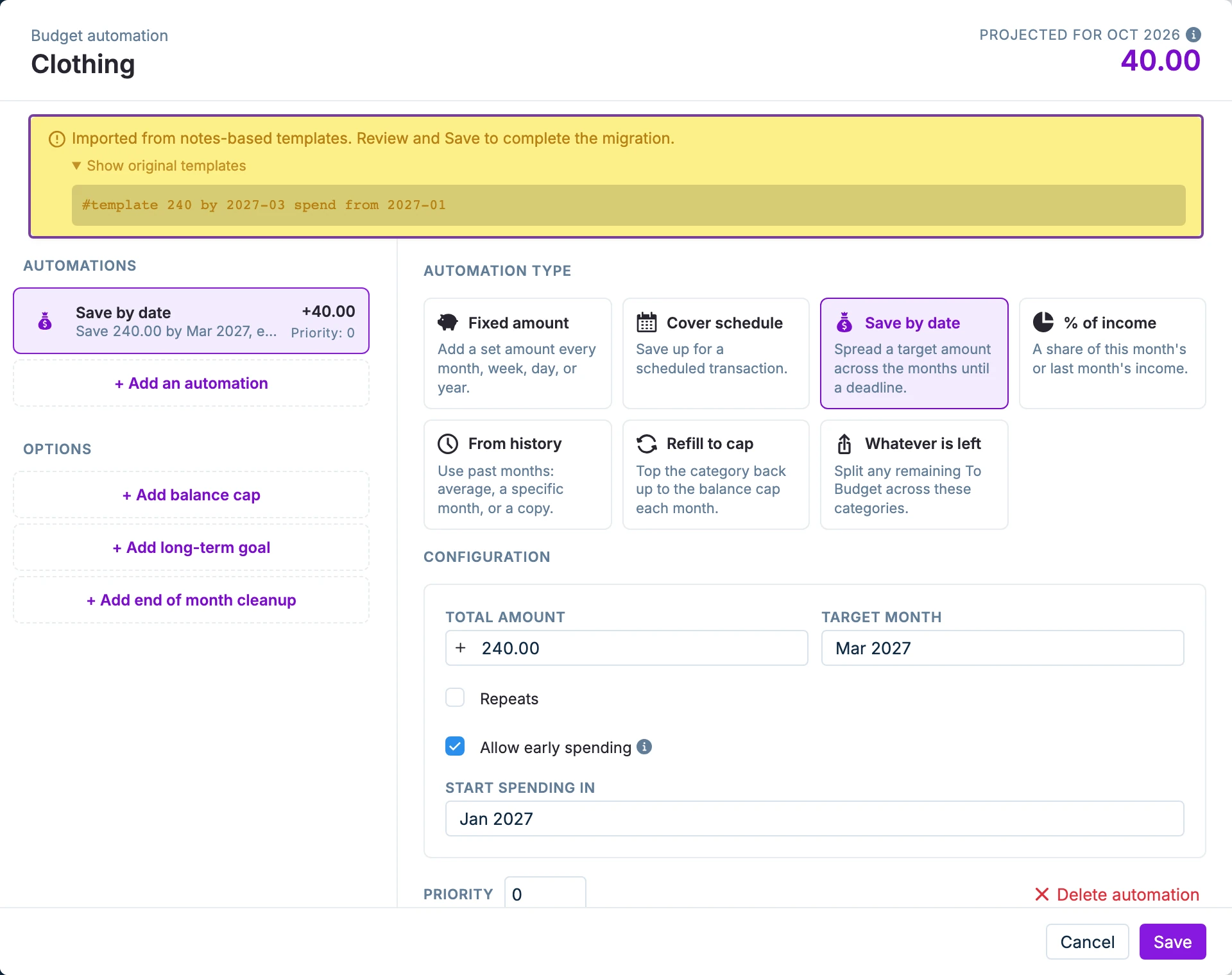
Make any changes you feel are needed, then Save the form to complete the migration. The notes can now be deleted. Once you have migrated to UI based automations, adding new ones to the notes will no longer work. To revert back to using notes, you'll need to click Un-migrate to text notes in the bottom left of the UI modal.
Creating Automations
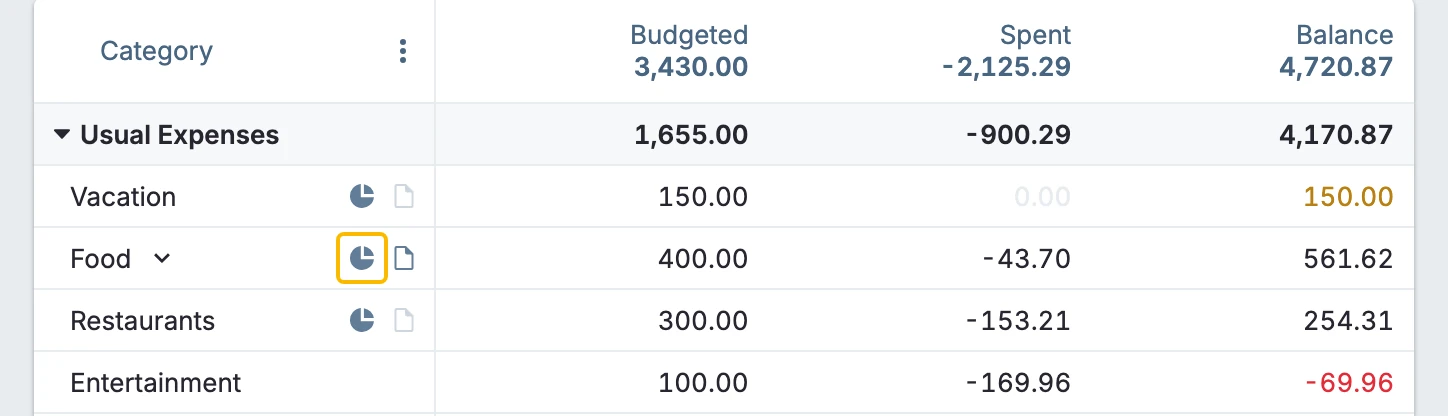
Click on the pie chart icon that appears when you hover over a category name.
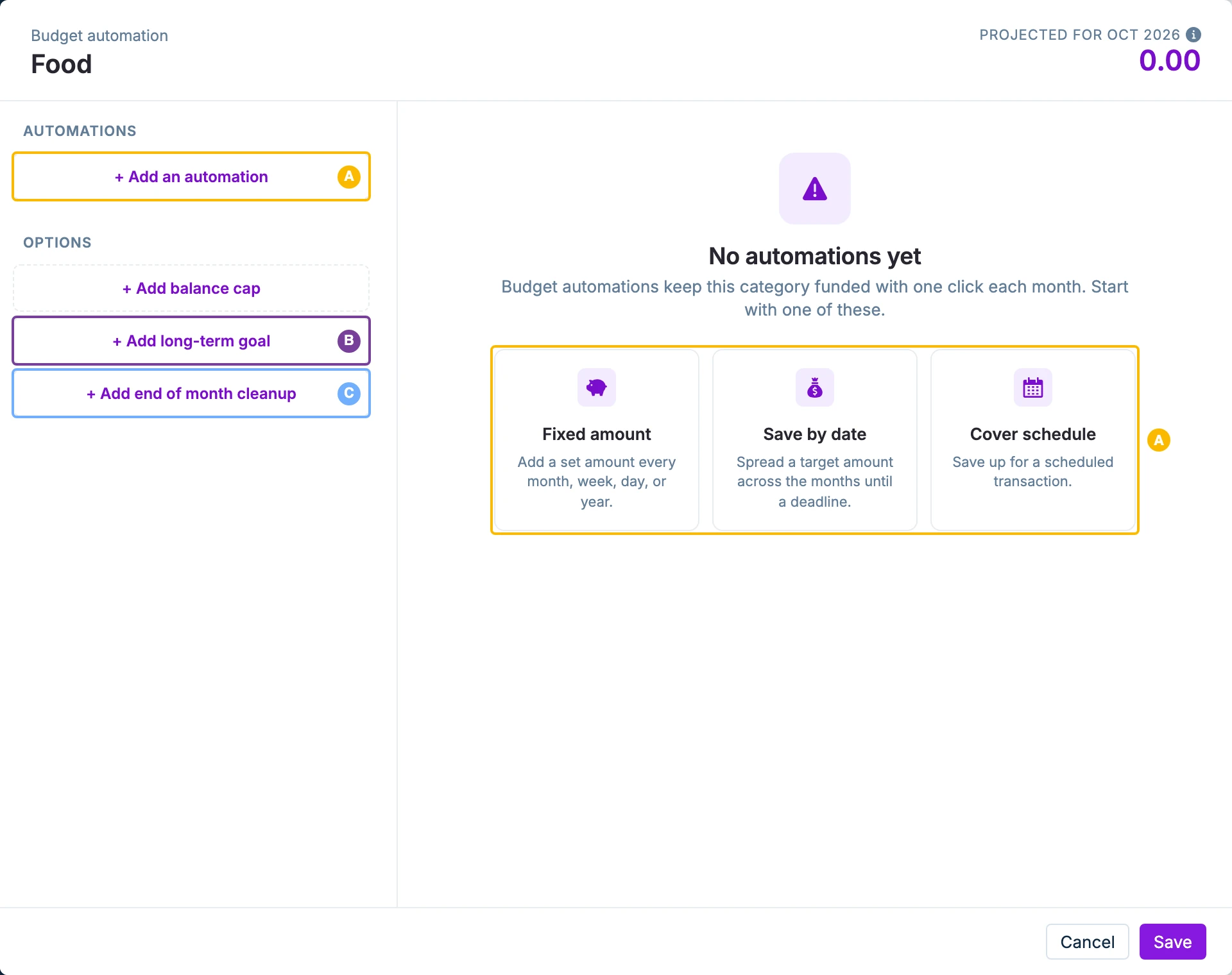
From the opening view, you can
- A. Add an automation adds a new budget automation. The example cards on the right do the same.
- B. Add long-term goal adds a long-term goal.
- C. Add end of month cleanup adds month-end cleanup to the category.
Balance caps only take effect once another automation is contributing funds to the category.
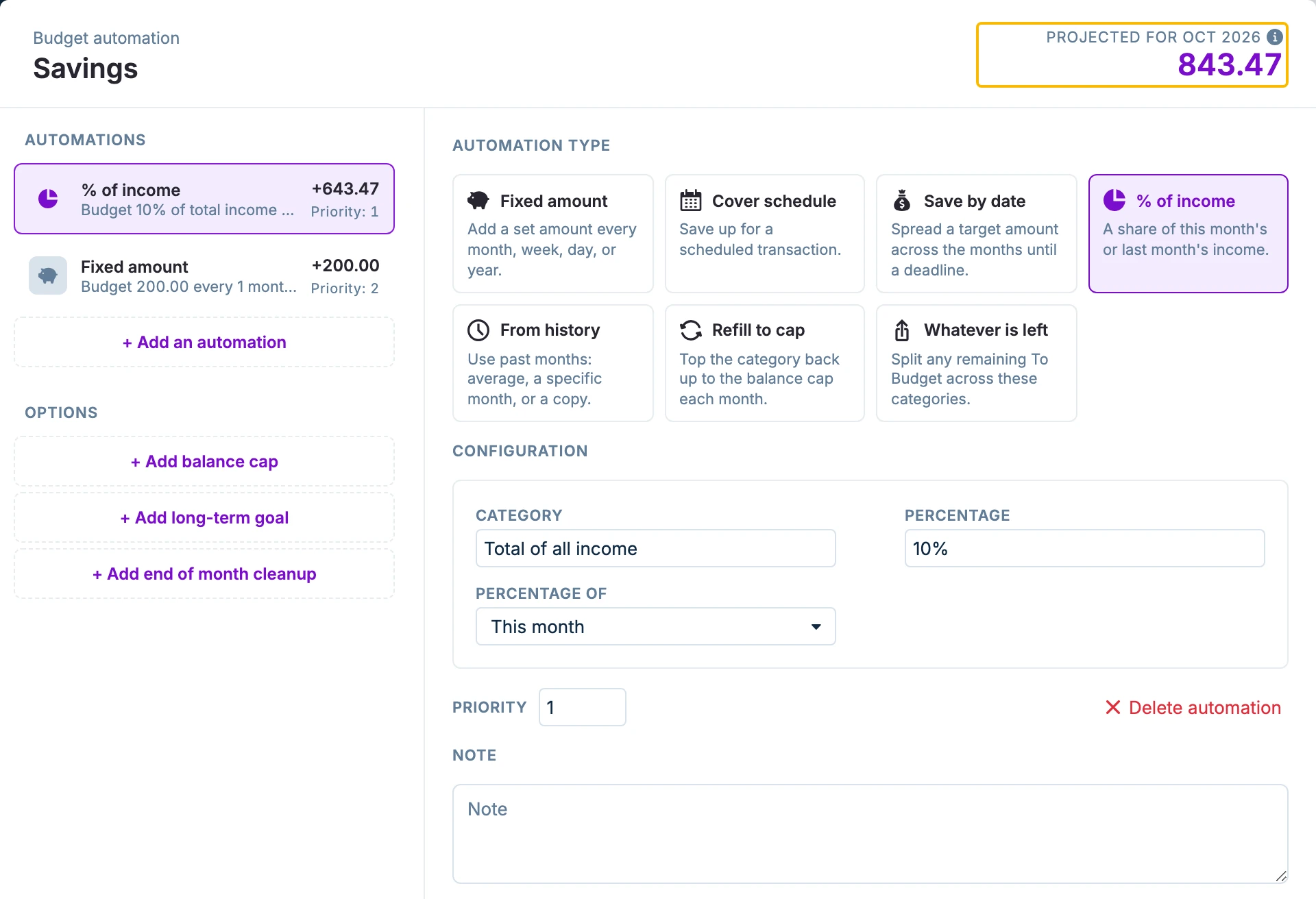
You can have multiple automations!
The projected amount to be budgeted will be shown in the top right of the automation form. This will update with the category’s automations.
Don't forget to Save your work when you are finished adding and editing automations.
Priorities
Most of the budget automations will have a priority field that you can use to set the order in which the automations are run, from lowest to highest.
- Negative priorities are not allowed.
- All priority 0 are run first, then 1, 2, 30, 36, etc. So the automation that has the highest priority in importance actually has the lowest priority number.
- All priorities with the same number will run in database order. To ensure the budget fills in the exact order you wish, give each automation a different priority number.
- Priority 0 automations will budget funds even if they are not available in To Budget, this can lead to a negative To Budget.
- Priorities other than 0 will not budget more funds than are available.
- If you have multiple Cover schedule or Save by date automations in a single category, their priorities must match.
When you first start using priorities, space them 10 numbers apart so you have room to insert additional priorities later.
Automation Notes
Every automation can have their own note. This is handy; you can jot down what you are trying to accomplish with the automation. For example, with a long-term goal, you could note when you are hoping to reach it and what you are hoping to purchase.
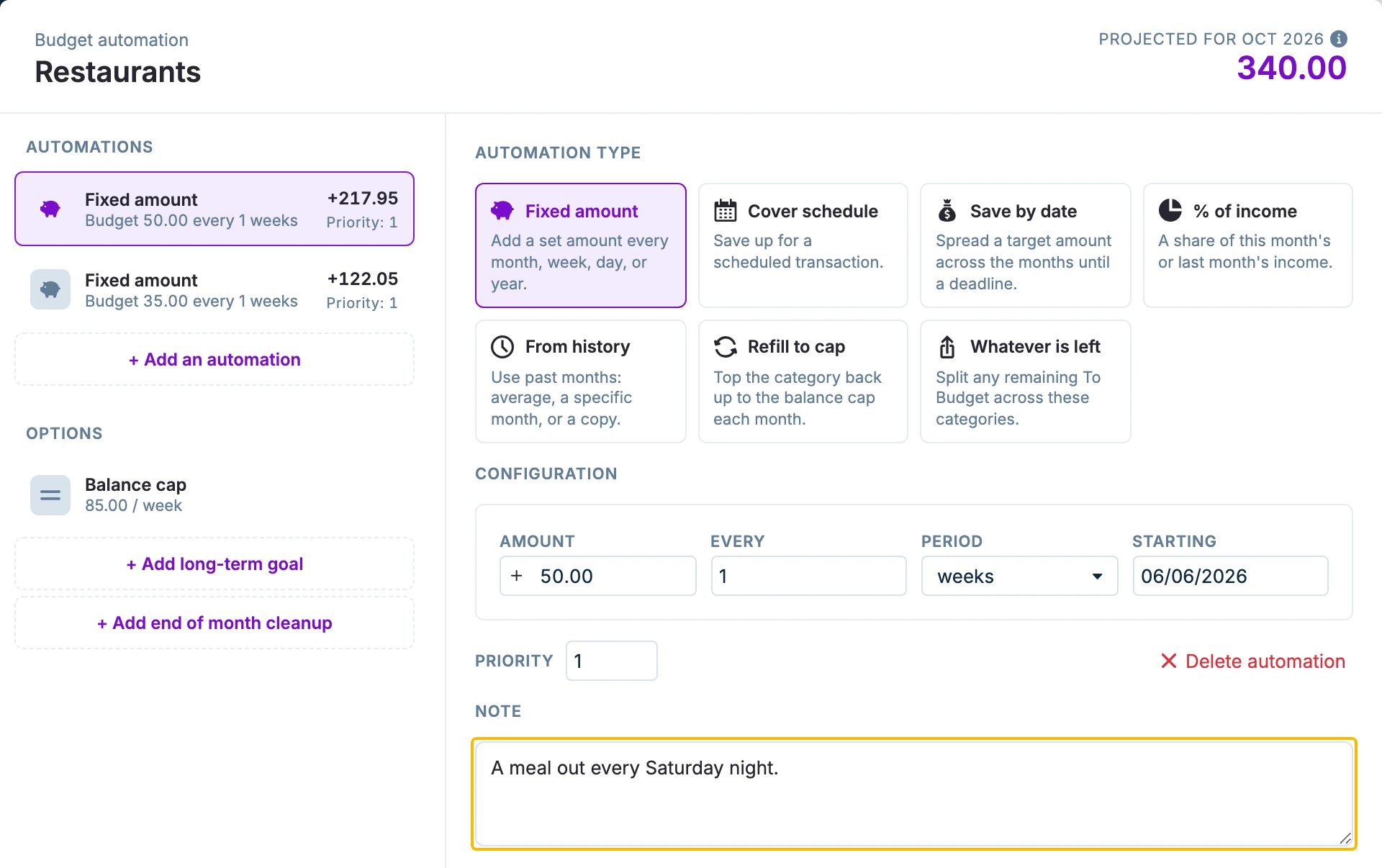
When you hover over a category automation icon (pie chart), you will see all of the automations present and the notes associated with them.
Here are two examples:
General budget automations:
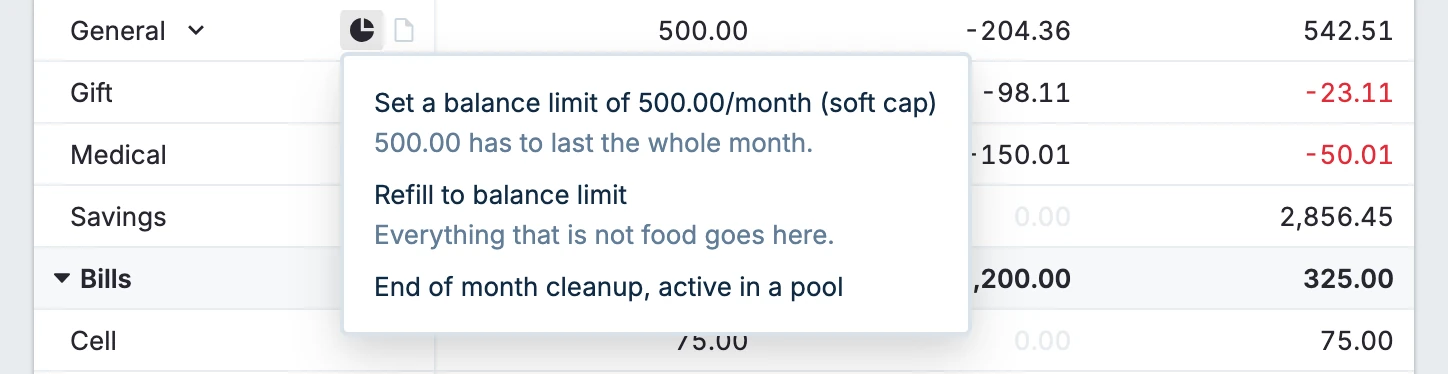
Dining out budget automations:
Fixed Amount
This is the simplest type of automation. The amount (A) will be budgeted at the cadence you choose (B & C) with the starting date you set (D).
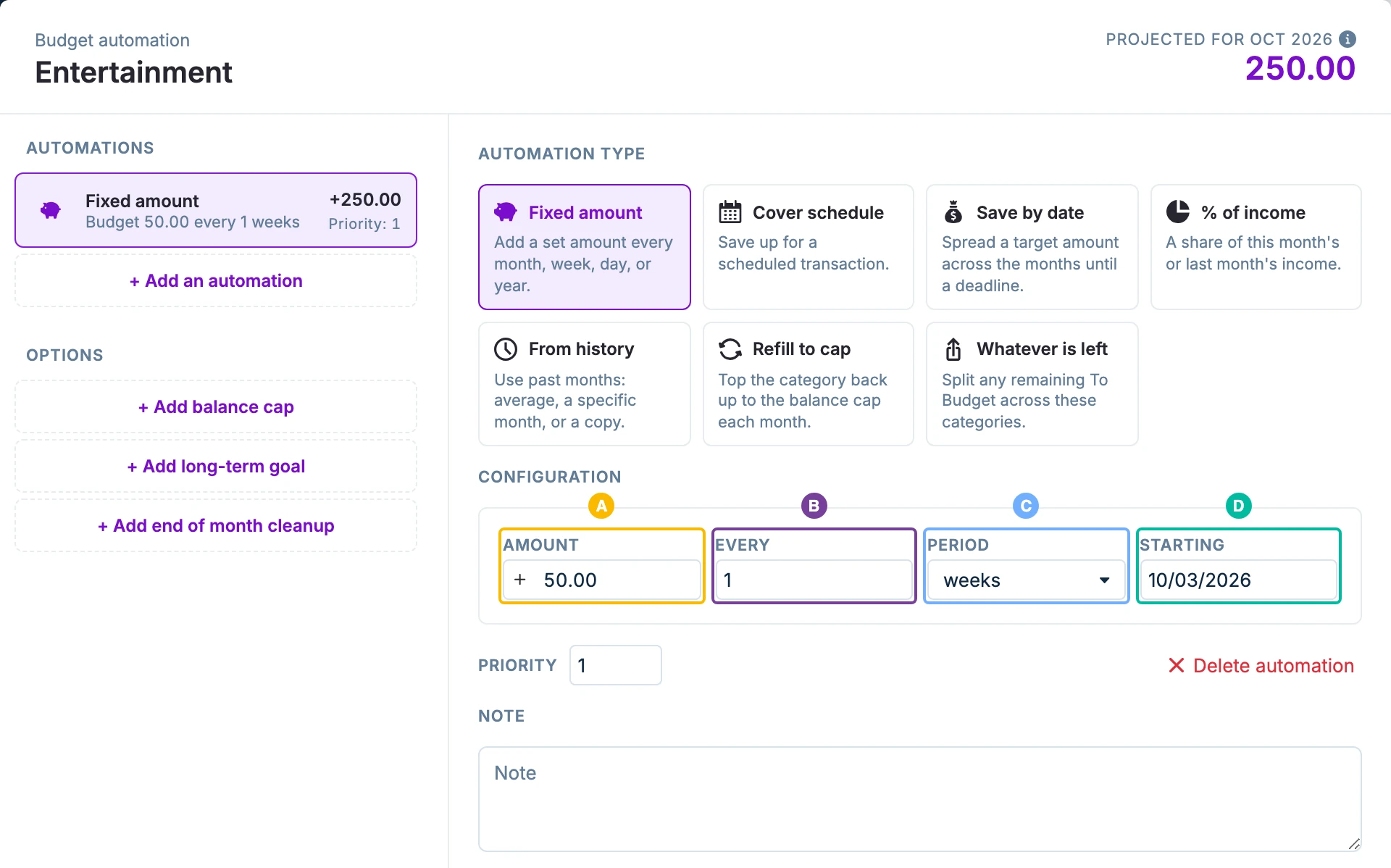
For weeks or days, the entire month will be budgeted based on the number of weeks/days in that month.
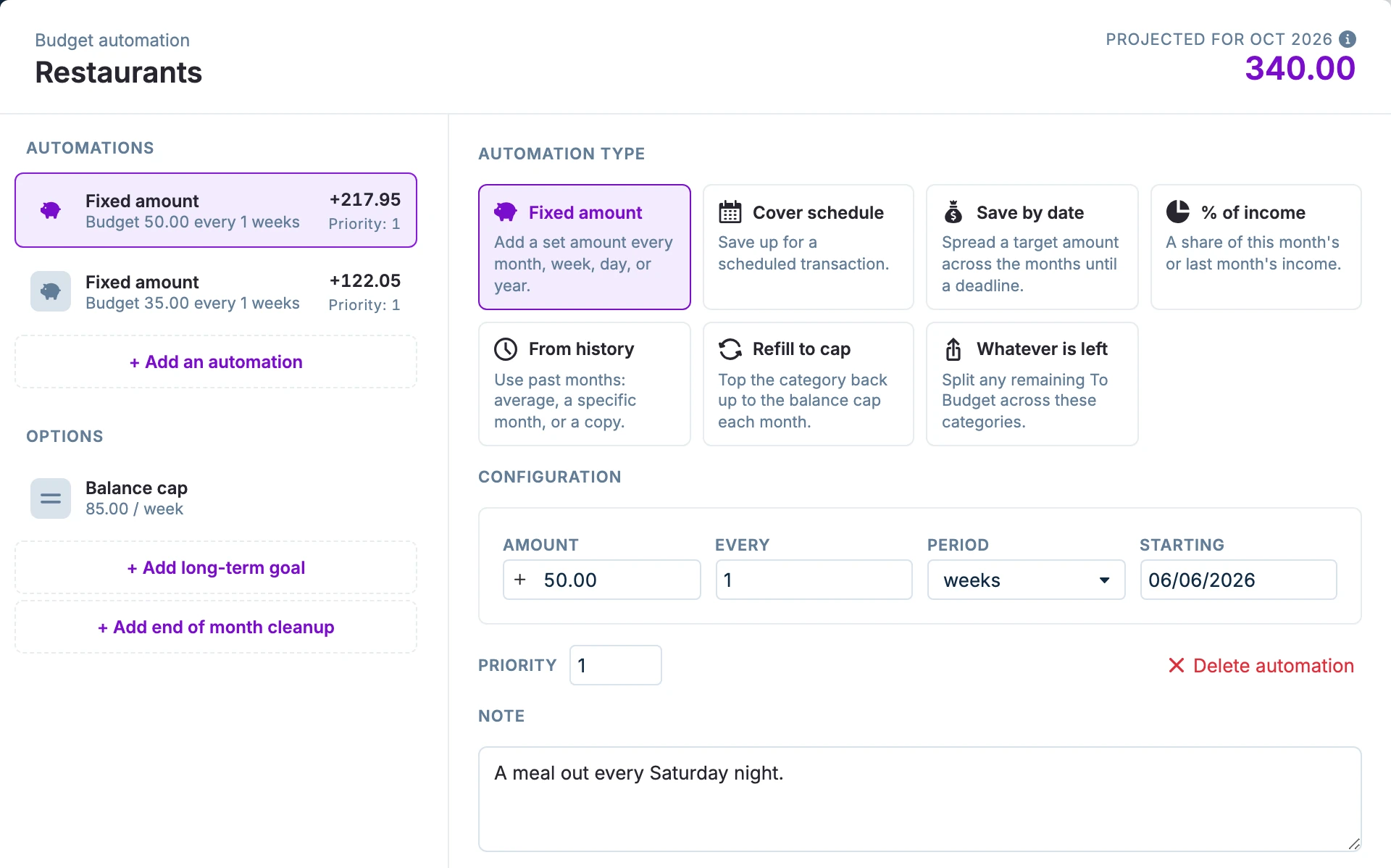
For weeks, the number of weeks in a month is based on the weekday of your start date. Our start date above is on a Saturday. There are 5 Saturdays in October 2026, so the automation projects a budget of 250.00.
You can give different priorities to multiple Fixed amount automations in the same category and they will be respected when the budget fills.
This blog post using note templates from 2024 goes into this in more detail.
Save by Date
Use this automation to save up the desired amount (A) by a specific month (B).
The automation determines how much to budget each month to meet your savings goal. If you add or remove funds along the way, it recalculates the remaining monthly amounts so you still reach your target on time.
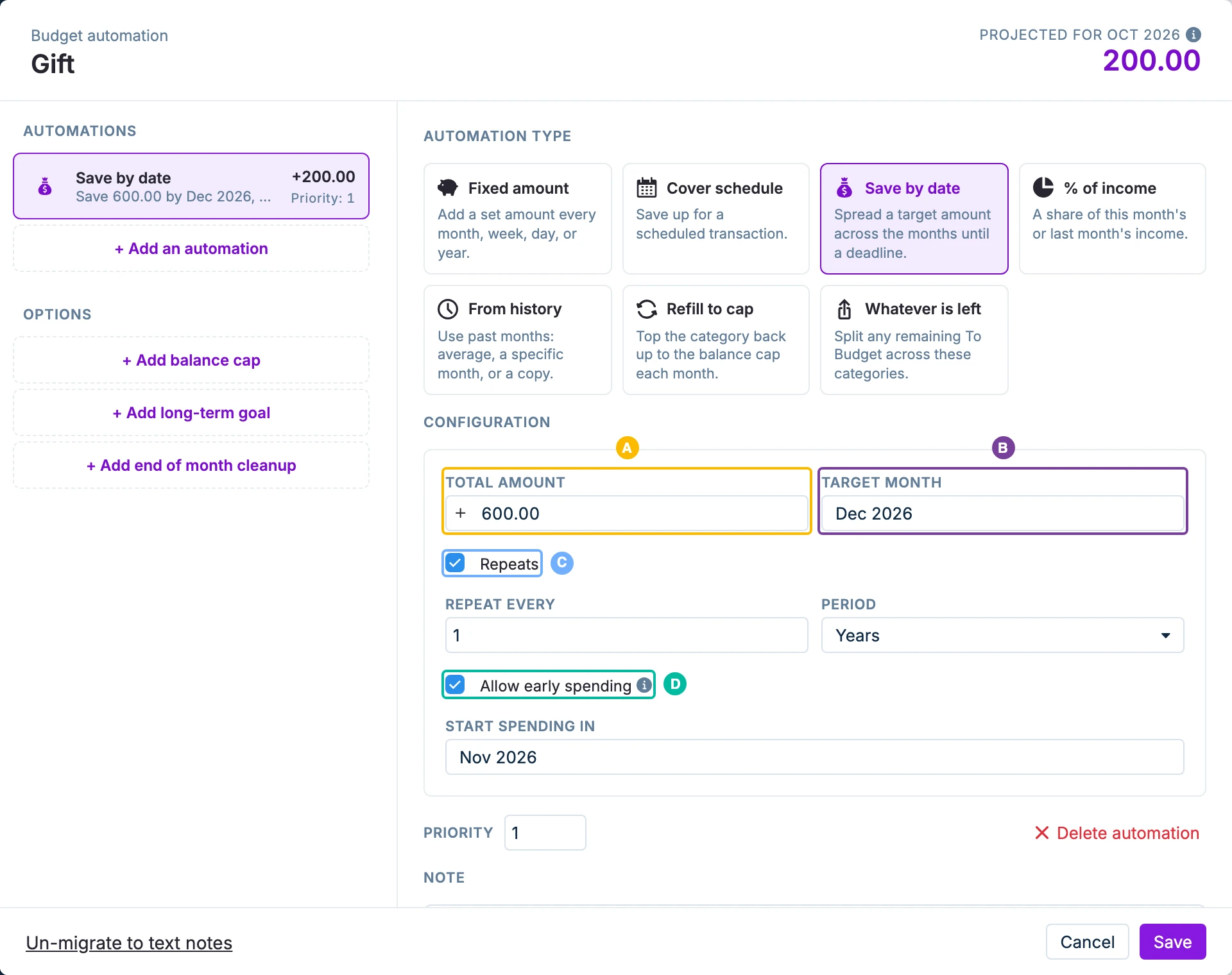
Options:
- Repeat (C). You can repeat the automation if your target is cyclical, such as bills due quarterly or yearly. If you need to repeat based on a number of days or weeks, use the Fixed amount automation.
- Allow early spending (D). This option allows you to spend funds along the way. Starting in the month you choose, you can spend from the category without the automation recalculating the remaining monthly amounts. By the target date, the remaining balance will be the amount you did not spend earlier. This option is handy for times when spending happens months before the event, like travel savings, wedding plans or the birthday gifts in our example.
All Save by date automations in the same category must have the same priority.
Cover Schedule
This automation budgets based on a schedule previously added to actual.
Pick a schedule (A) and a mode (B). See below for a discussion on adjustments (C).
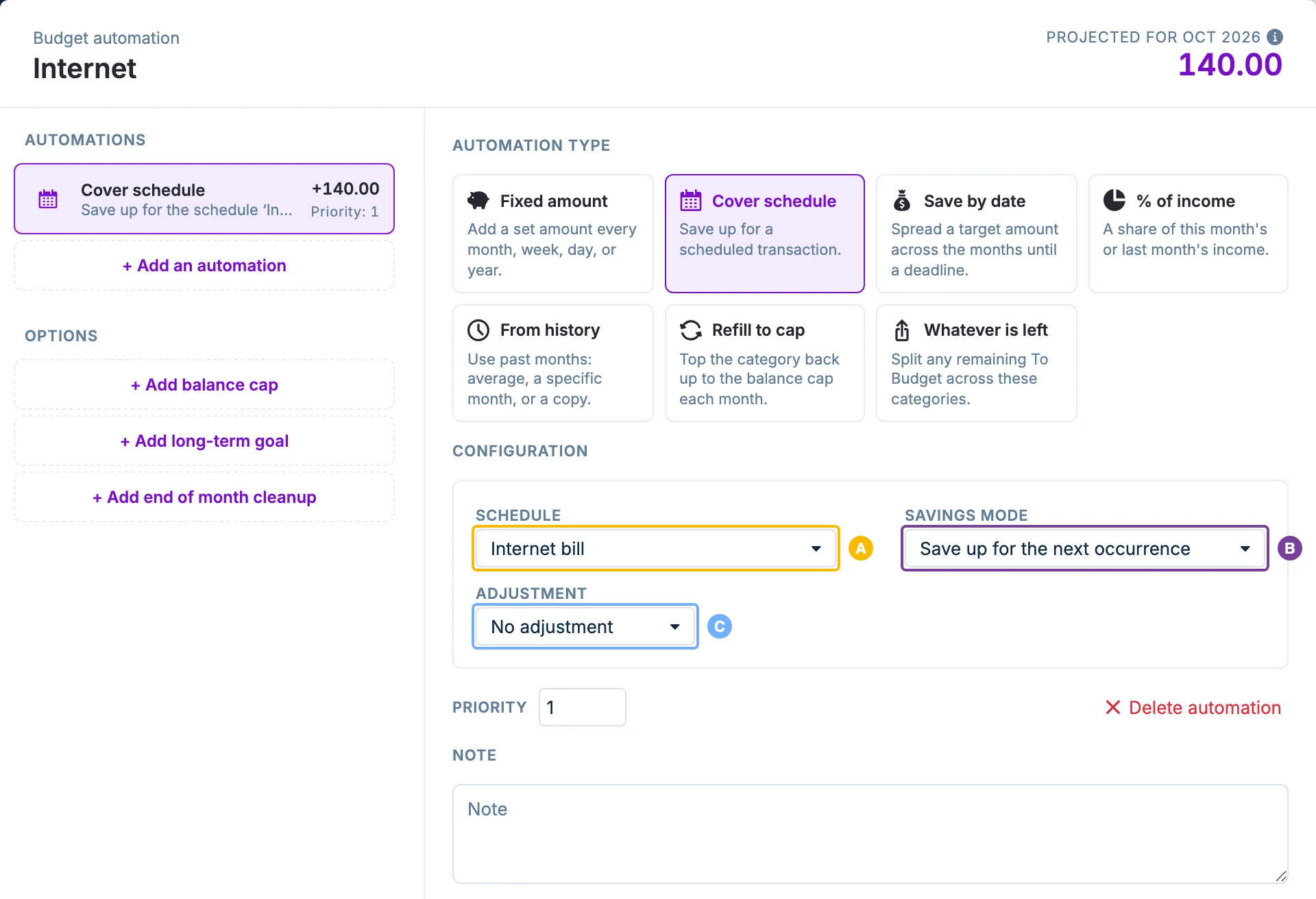
There are two modes:
For schedules repeating monthly or more often the modes are equivalent.
- Save for the next occurrence. The automation budgets a portion of the scheduled amount each month so the full amount is ready when needed.
- Cover each occurrence when it occurs. The automation budgets for the schedule only in the month it occurs. It will budget the full scheduled amount.
You can edit the schedule in the schedule editor and the automation will stay up to date automatically.
All Cover schedule automations in the same category must have the same priority.
From History
With this automation, you can budget based on historical data.
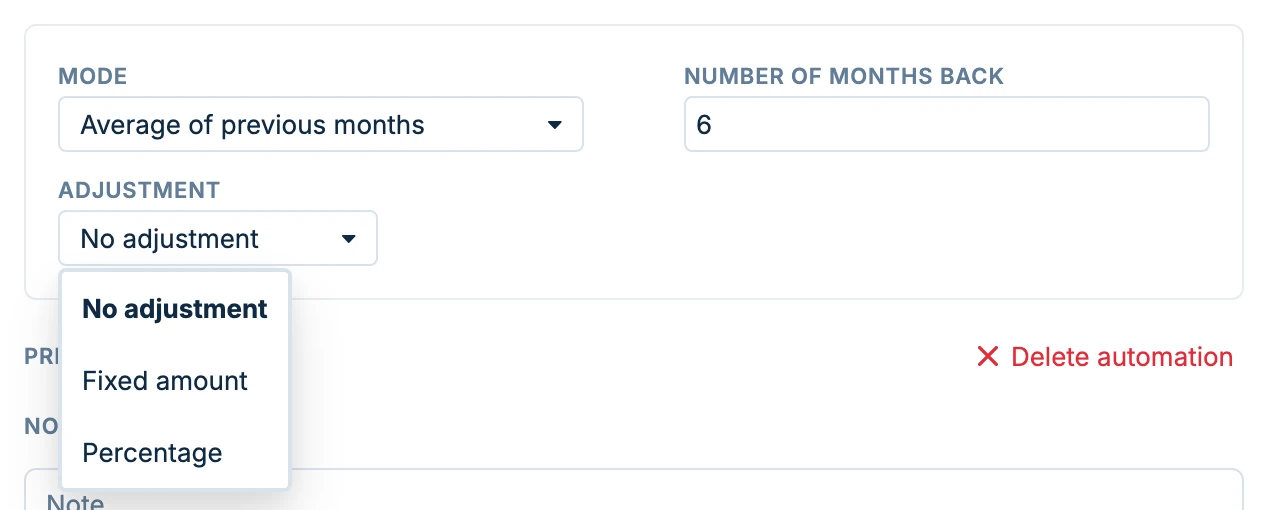
Choose a mode (A) and the number of months back (B). This is another automation that allows for adjustments (C).
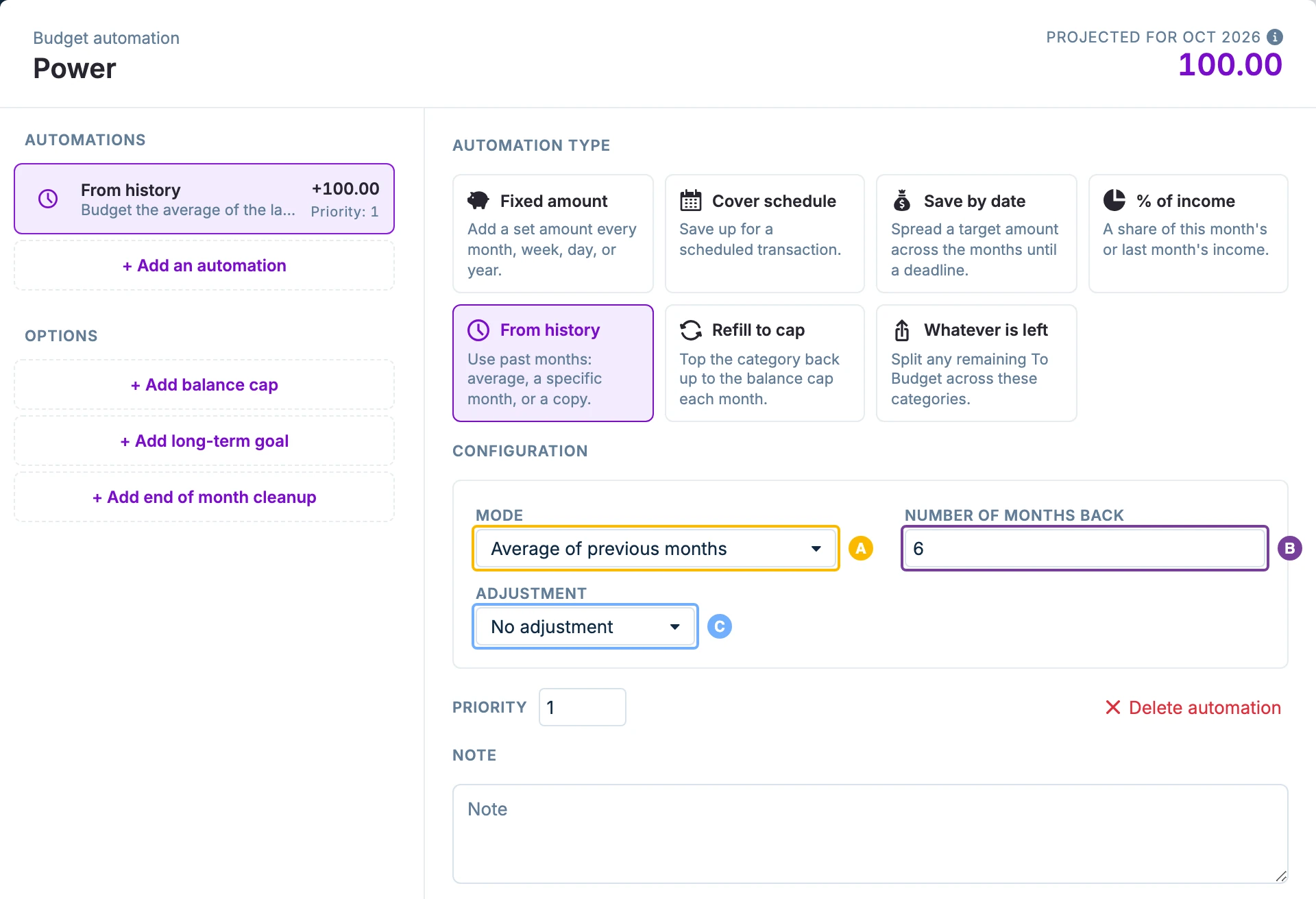
Modes:
- Copy a previous month. This will copy the budget from a previous month.
- Average of previous months. This will average the spending from the previous number of months you choose. The average is calculated from completed months only, to ensure the amount accurately reflects actual spending behavior.
% of Income
This automation budgets a percentage of income from this month or last month, or a percentage of available funds from this month.
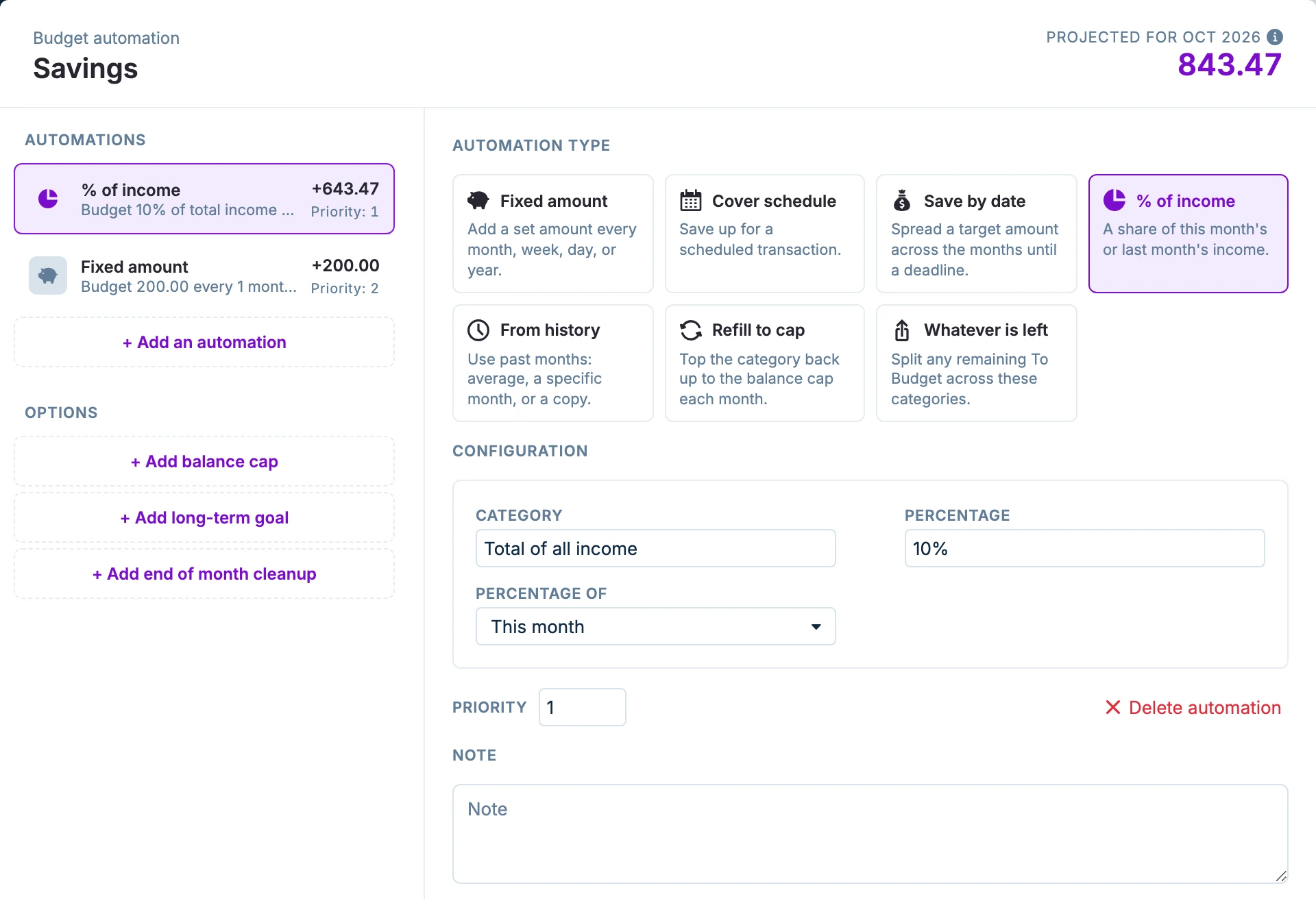
When you click in the Category field, you will be presented with current choices to base the percentage on.
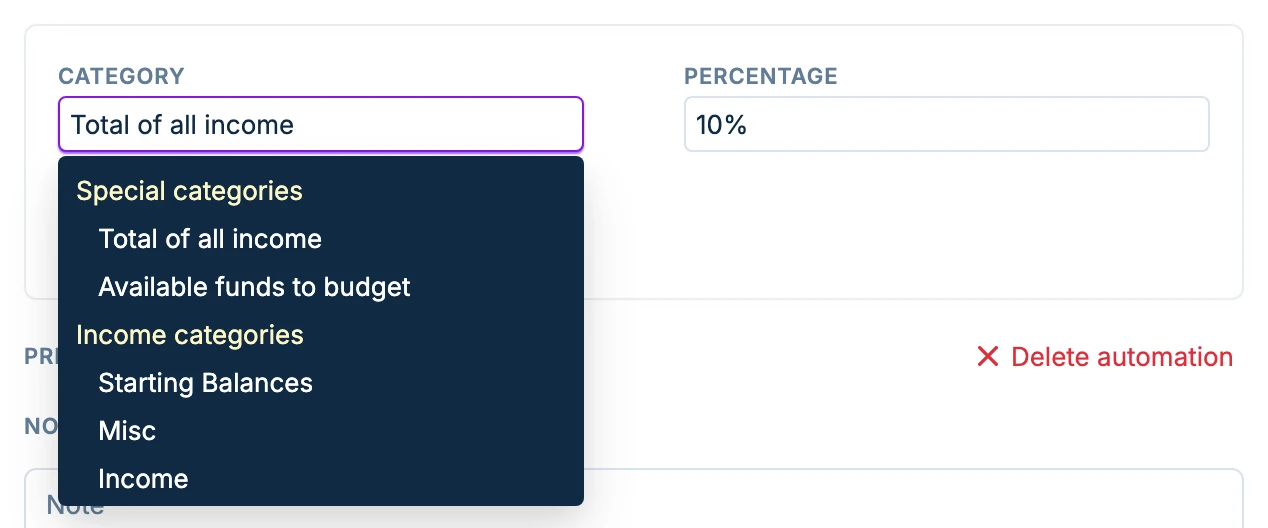
- Total of all income. This month or Last month. The sum of all income categories in the budget will be used.
- Available funds to budget. This month only. The available amount after Priority 0 and other automations with lower or equal priorities have run will be used.
- Specific income categories. This month or Last month. The percentage will be based on the single income category you choose.
Refill to Cap
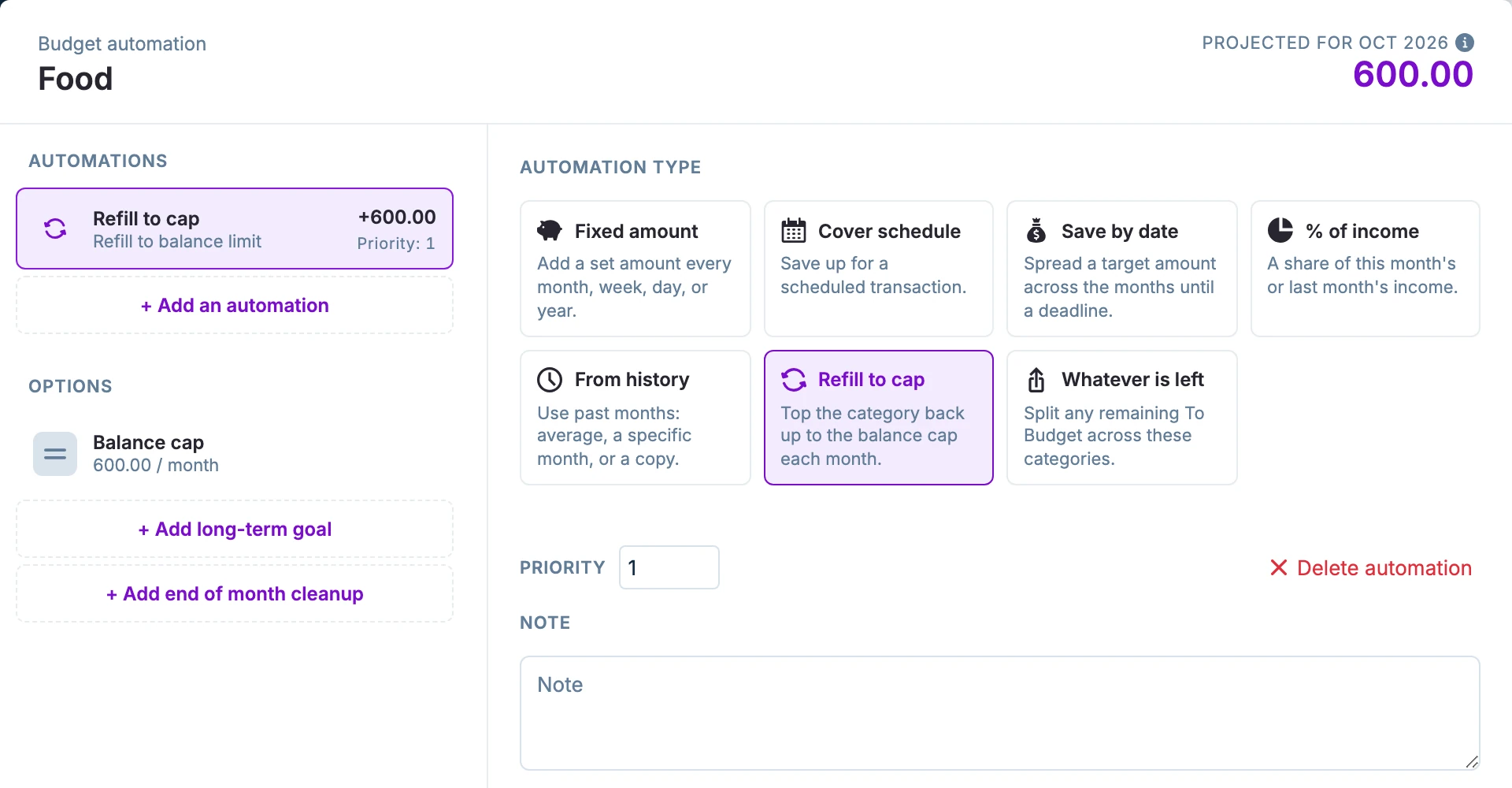
This automation requires a Balance cap and will refill the category to the cap.
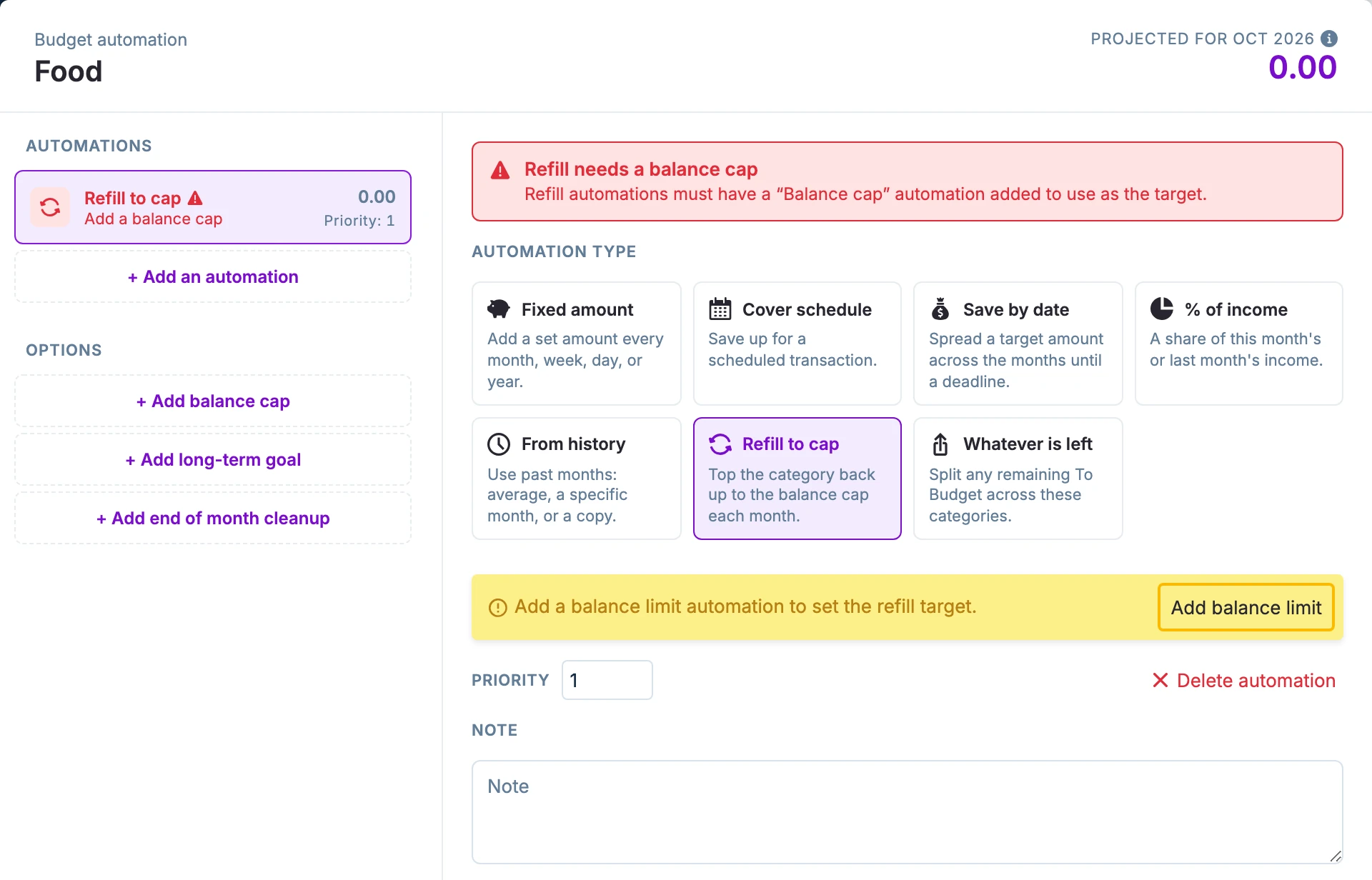
Click on Add balance limit and you will be taken to the Balance cap automation. After you add a balance cap, the refill automation will be active.
Whatever is Left
After all of the other automations have run, the leftover of To Budget will be doled out by these remainder automations based on the weights you choose.
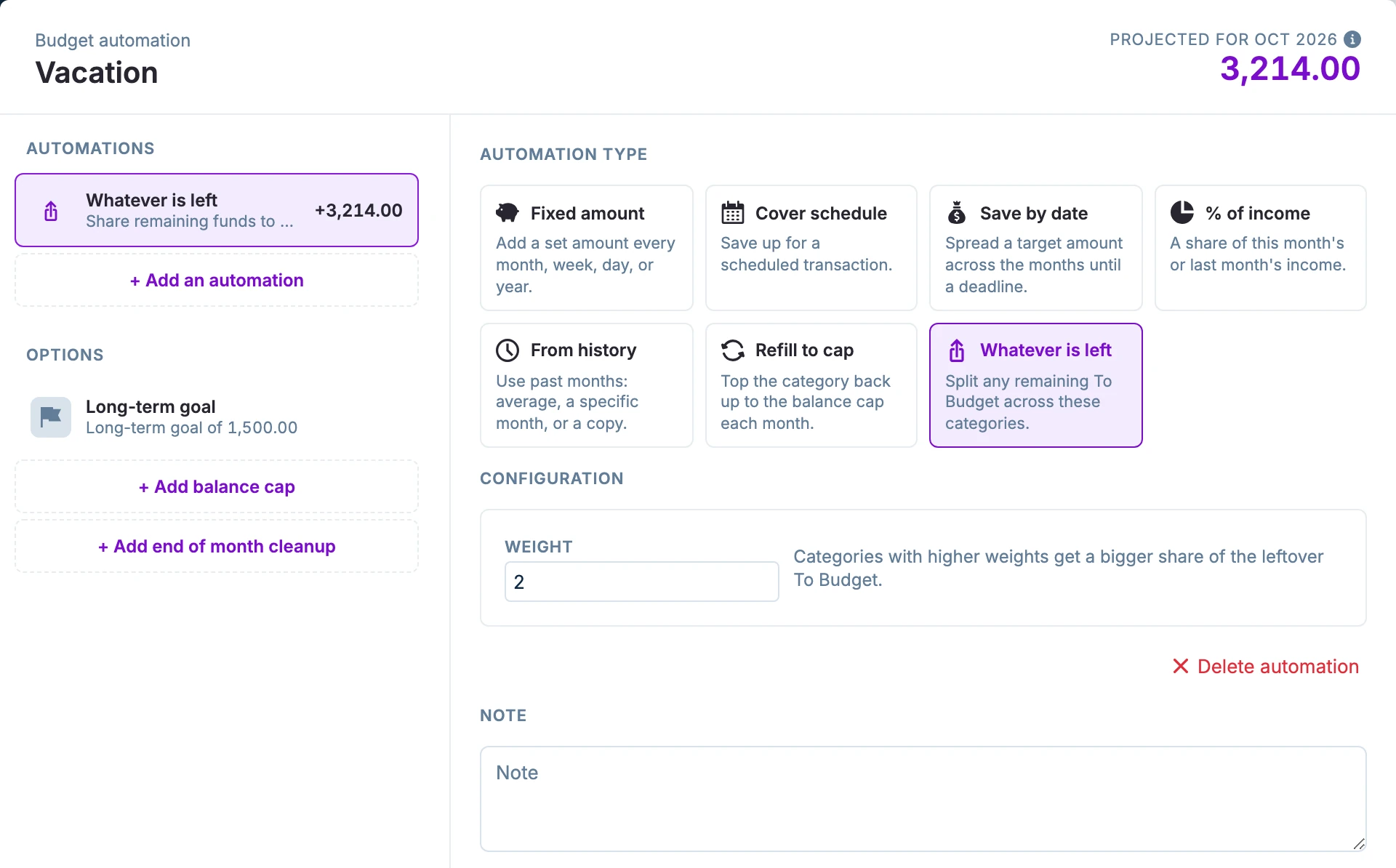
- You can have as many remainder automations as you like.
- Remainder automations will respect any balance caps in place.
Weights
The sum of the weights of all remainder automations is used to determine the split amounts:
budgeted_amount = available_funds / sum_of_weights * category_weight
If a category has a balance cap, the automation will fill to the cap, subtract that amount from the available funds, then make another pass.
Examples
Starting with $100 leftover in To Budget and 0.00 in all of our three categories below.
Snack Fund has a balance cap of 40.00.
Pass 1:
Snacks, 100 / 6 * 3 = 50 (exceeds the cap, so Snack Fund receives 40.00, To Budget is now 60)
Pass 2:
Vacation, 60 / 3 * 1 = 20 (Vacation Fund receives 20.00)
Investment, 60 / 3 * 2 = 40 (Investment Fund receives 40.00)
| Category | Weight | Balance cap? | Amount applied |
|---|---|---|---|
| Snack Fund | 3 | Yes, 40.00 | 40.00 |
| Vacation Fund | 1 | No | 20.00 |
| Investment Fund | 2 | No | 40.00 |
Adjustments
Scheduled expenses (e.g. insurance, property rates, etc.) often increase year on year. Often the amount is unknown until close to the due date. This creates a budget crunch - if your $ 1,000 insurance jumps 20% ($ 1,200), you need to make up that extra $ 200 in just a month or two. Even for day-to-day costs, inflationary pressures can put a dent in your budget plan if not accounted for. Or, perhaps you'd like to slowly bring down a category you spend too much on, a historical automation with a decrease adjustment can help you do just that.
This feature adds adjustments to either Cover schedule or From history automations.
You can adjust your automation by either a Fixed amount or by Percentage.
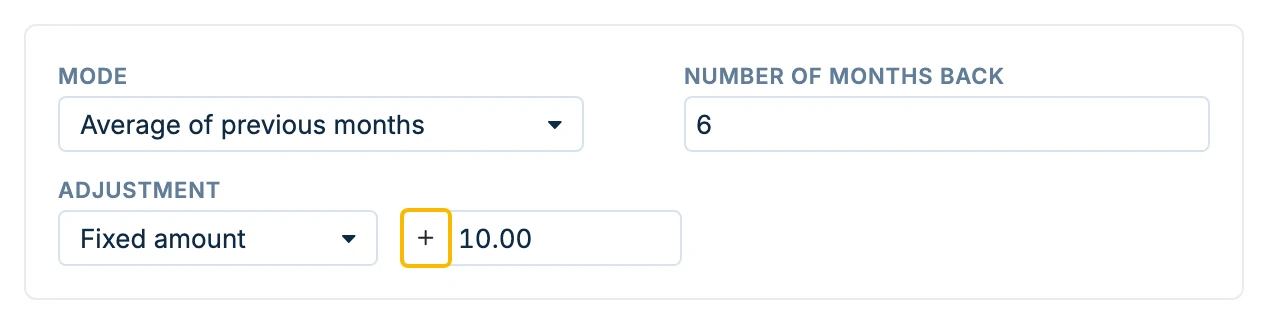
The Fixed amount type can either increase or decrease the amount budgeted. The default is to increase the amount. Click the + to switch.
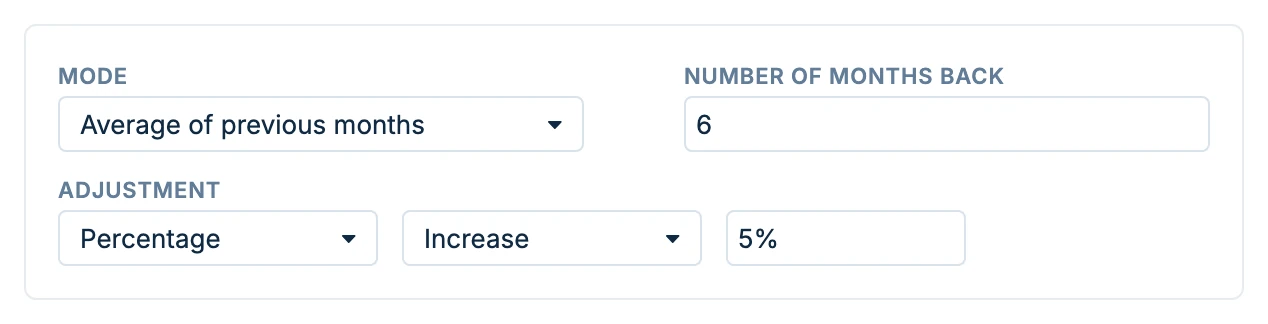
The Percentage type can also either increase or decrease the budgeted amount by a percentage.
Balance cap
Set a maximum amount over which the budget automations will not add funds.
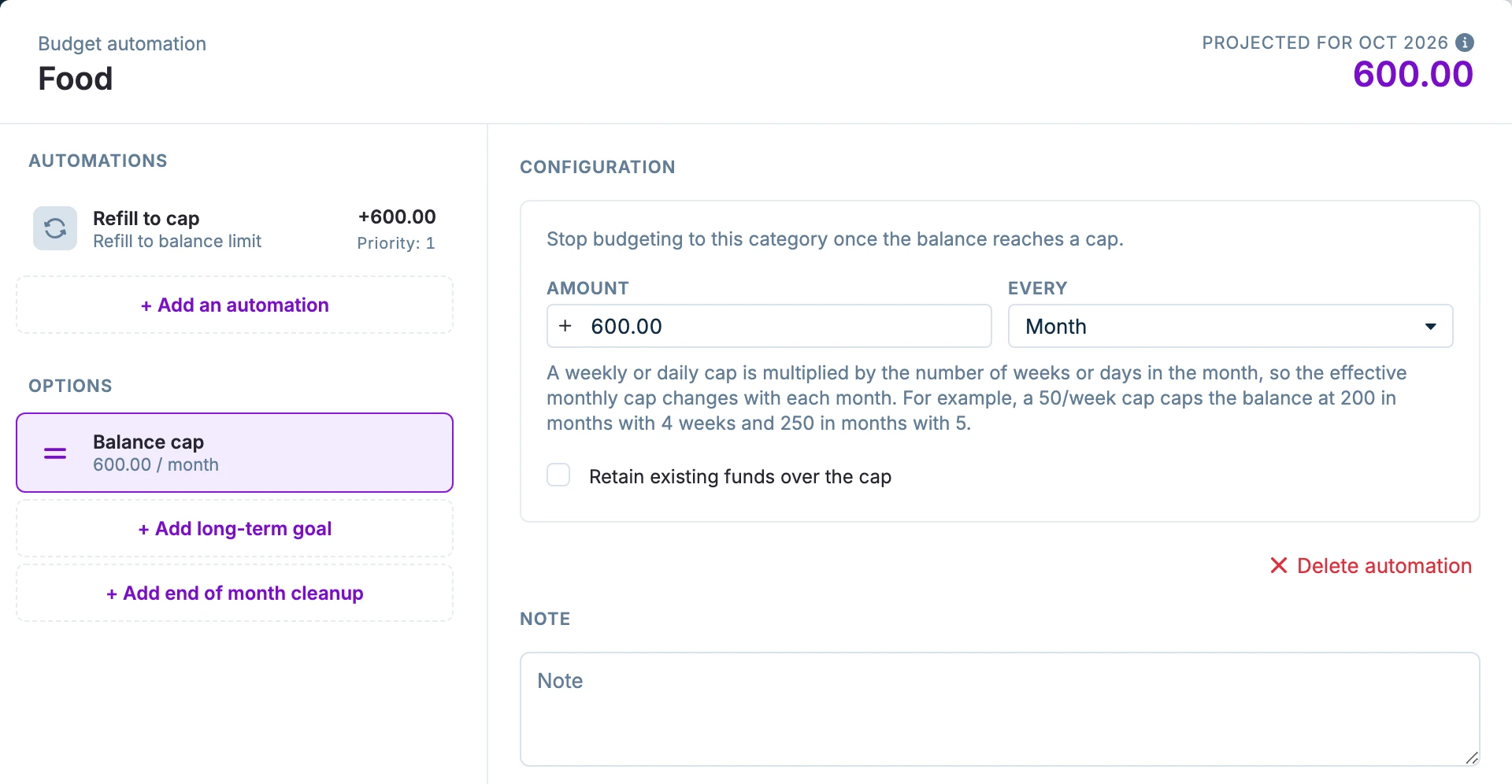
- If the category balance exceeds the cap, the next time you run the budgeting automations the excess will be removed.
- To keep any extra funds in the category, enable Retain existing funds over the cap. When this option is turned on, the next budgeting pass will leave the excess in place.
All automations in the category will be subject to the cap.
Examples
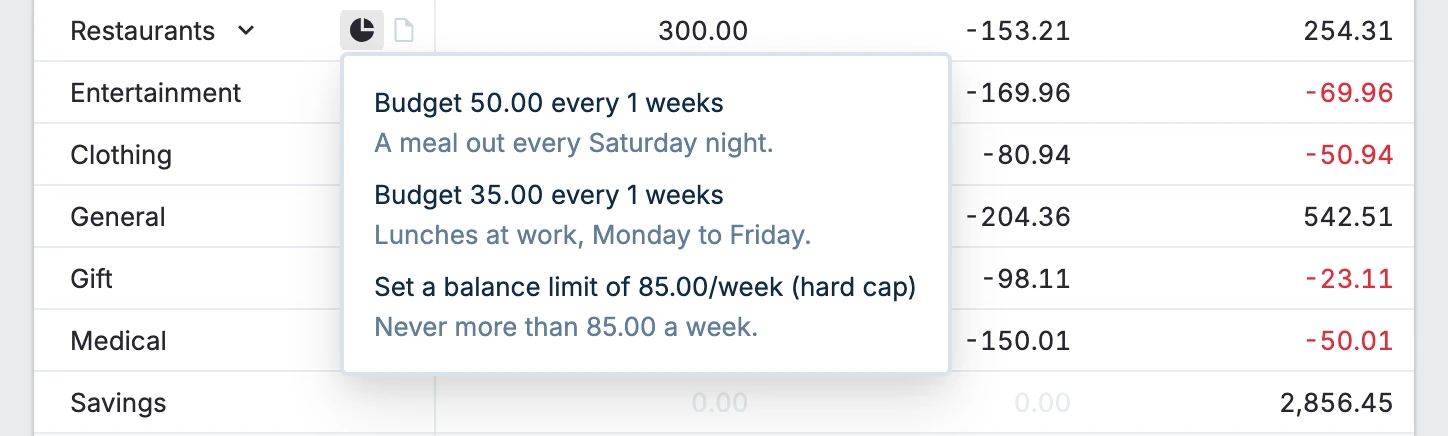
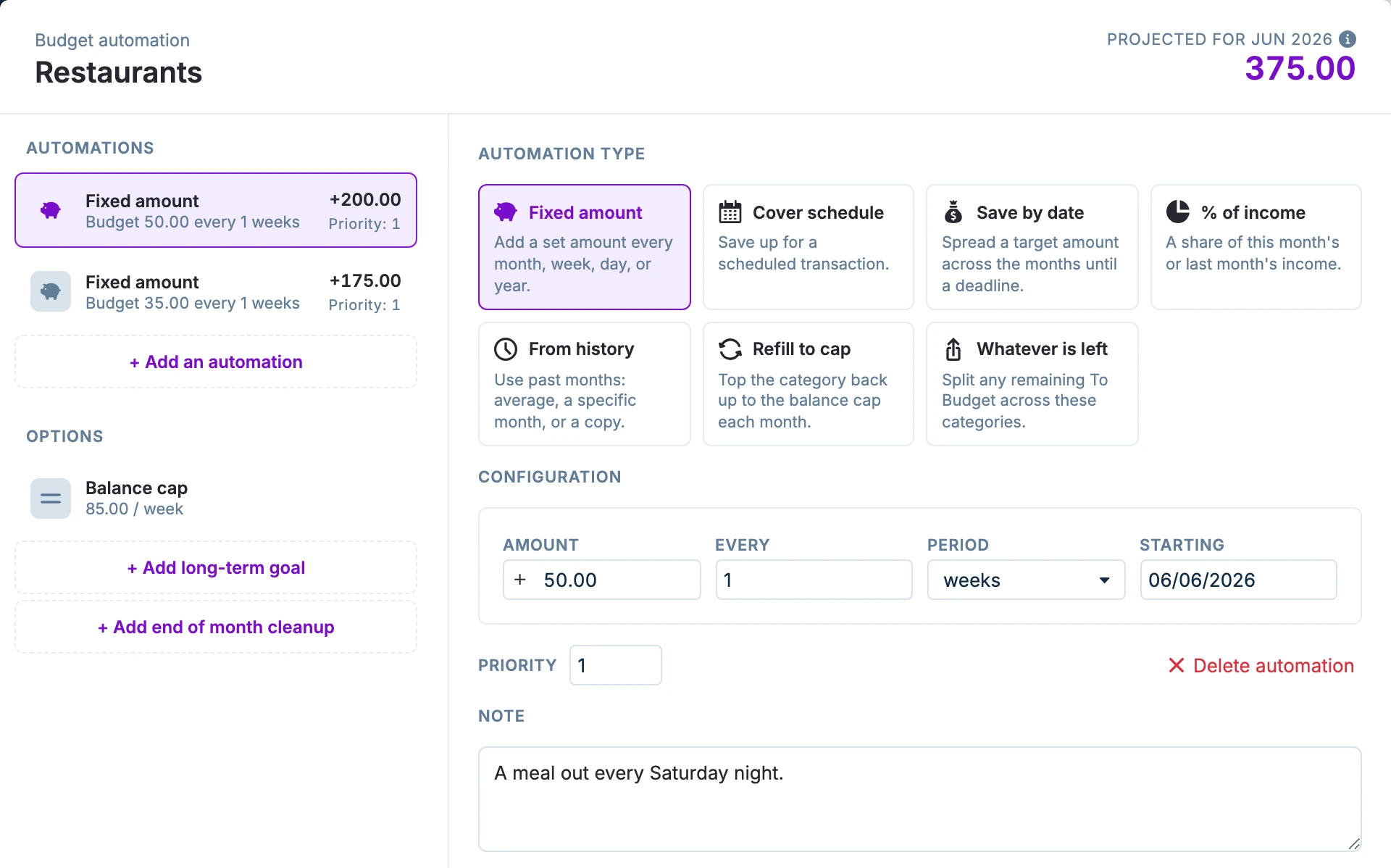
Here’s an interesting example of budgeting money for a meal out every Saturday night and weekday work lunches in the same category.
- The Saturday night meals are budgeted at 50.00/week starting on a Saturday.
- The weekday lunches are budgeted at 35.00/week starting on a Monday.
- The Balance cap is set at 85.00/week based on Mondays.
June has 4 Saturdays and 5 Mondays. The projected budget is 375:
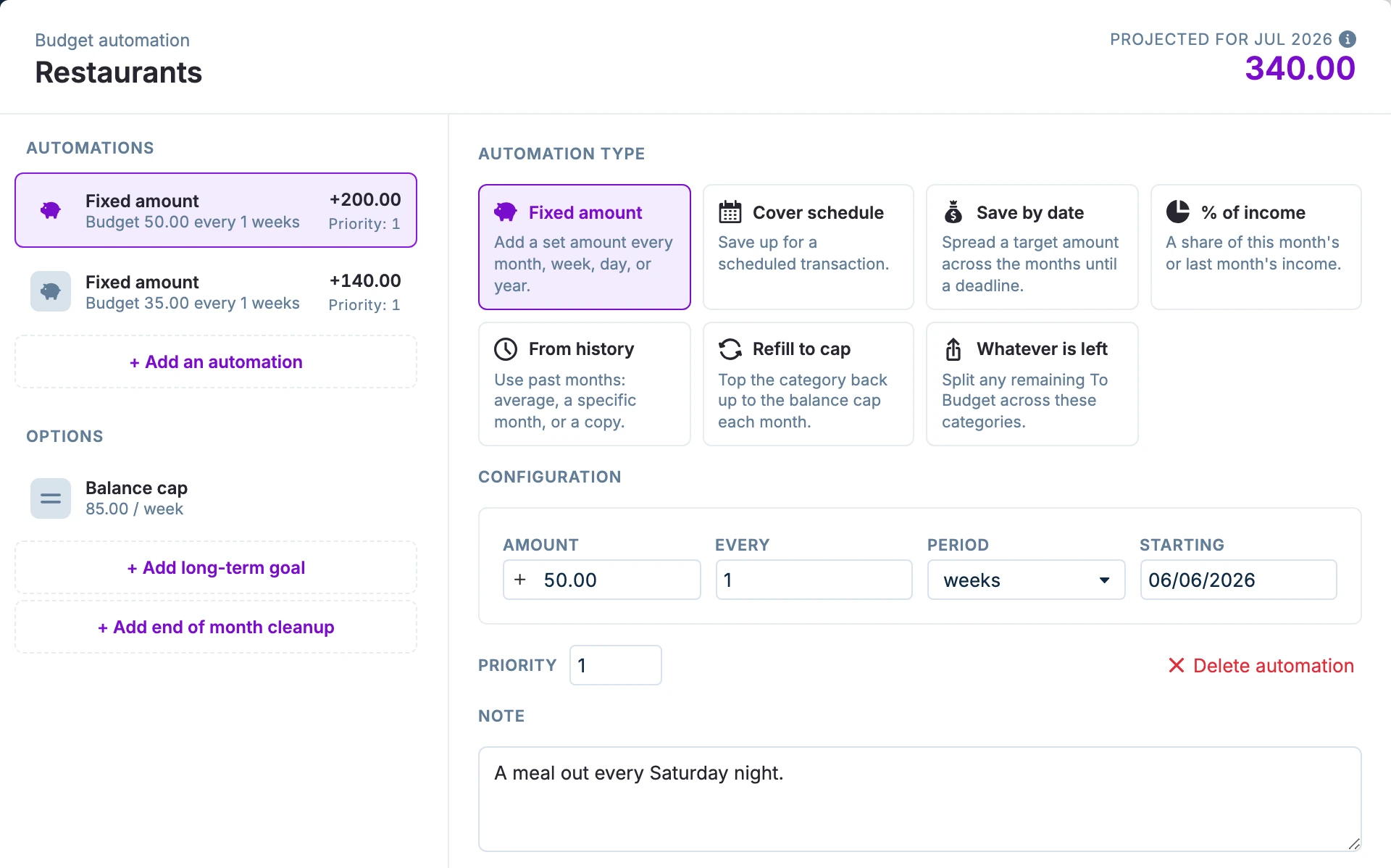
July has 4 Saturdays and 4 Mondays. The projected budget is 340:
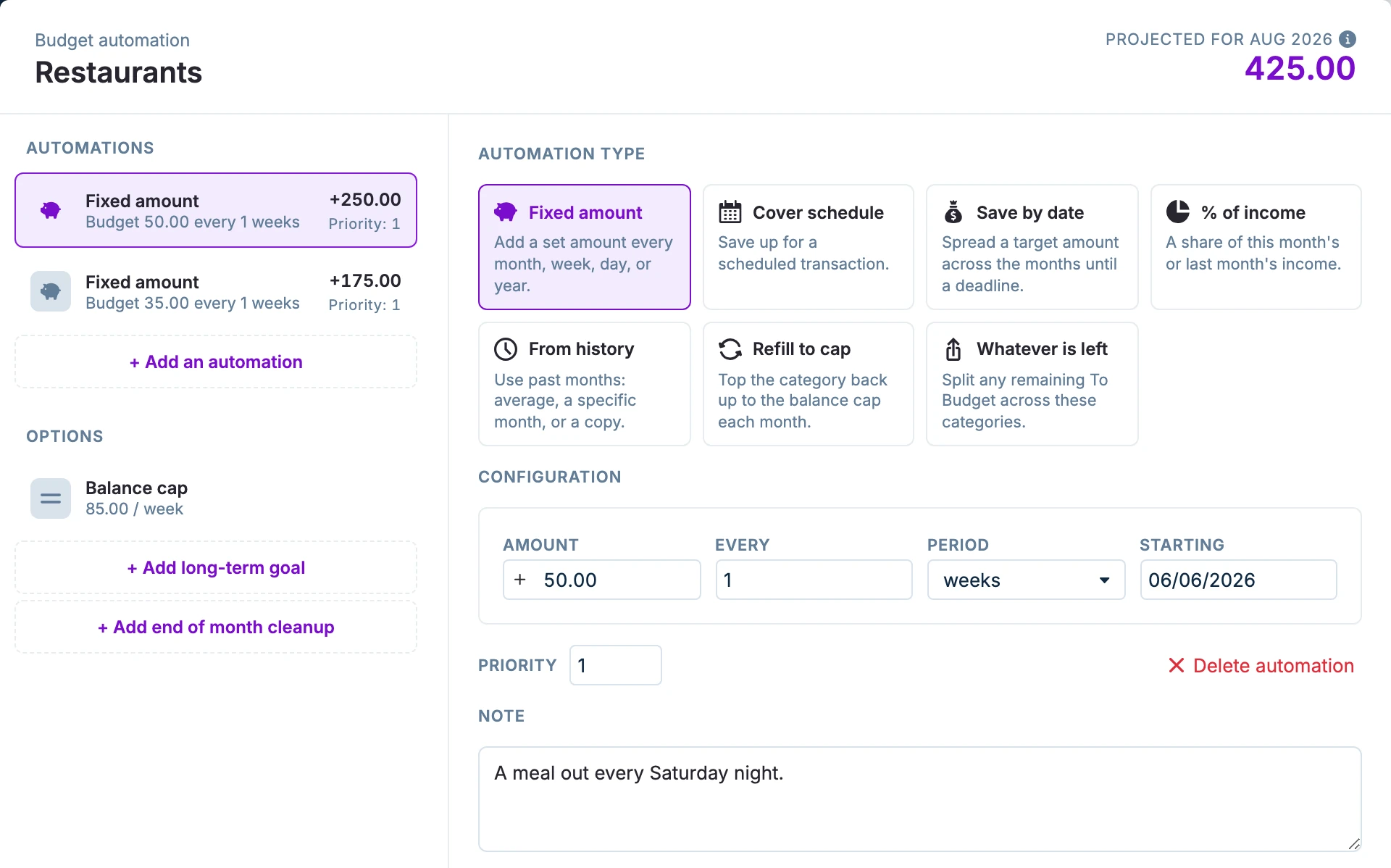
August has 5 Saturdays and 5 Mondays. The projected budget is 425:
October has 5 Saturdays and 4 Mondays. Our budget looks different as the Balance cap is based on the 4 Mondays!
So, the budget covers 4 Saturday meals and 4 work weeks. The projected budget is 340.
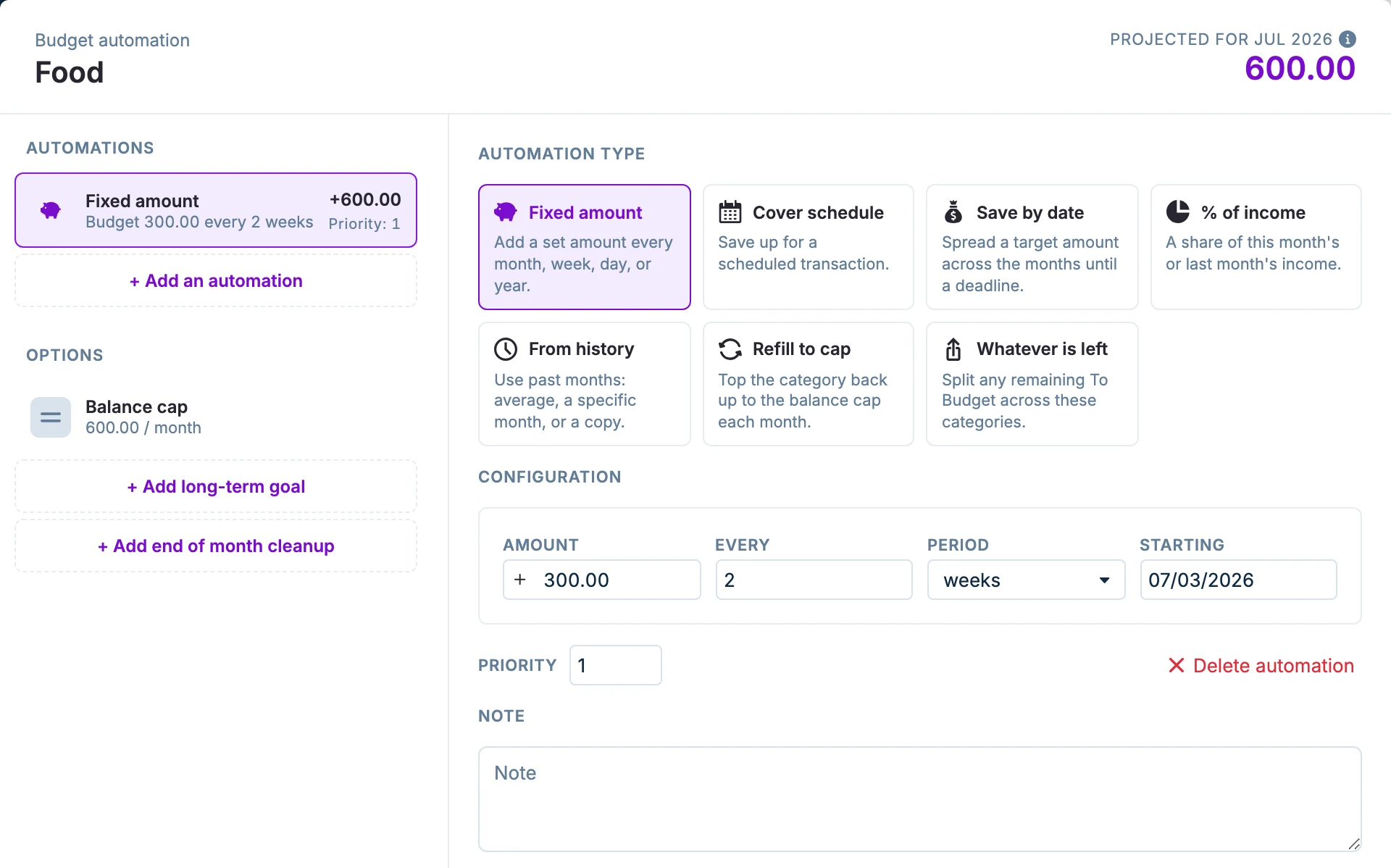
Here’s another example. We want to budget 300 every 2 weeks, but not in months with 3 Fridays. We place a 600 balance cap on our category and start a Fixed amount automation at 300 every 2 weeks on a Friday.
There are 3 Fridays in July, but the Balance cap holds our grocery budget at 600.00:
Long-term Goals and Budget Indicators
Budget Indicator
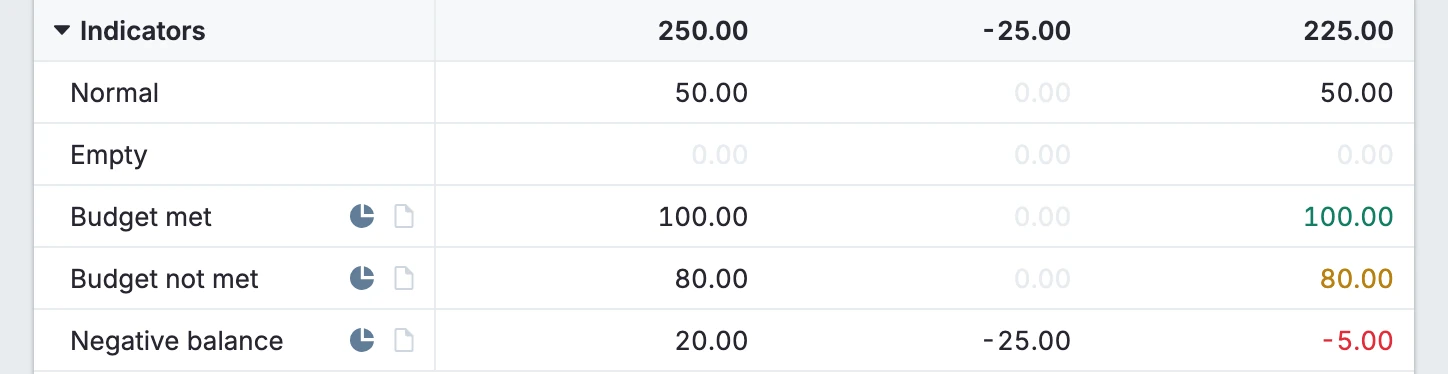
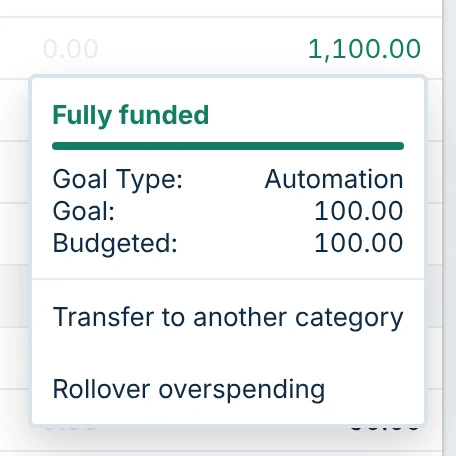
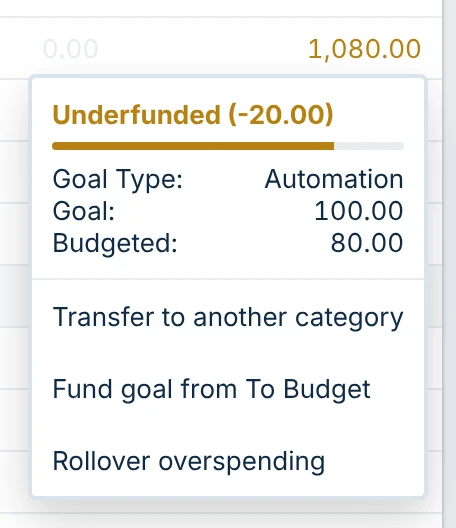
After automations run, each category’s budget indicator appears as the color of its balance text. Click a balance to see its goal status at the top of the balance menu.
The example below shows these states: normal (no automation), empty (no automation), projected budget met (green), projected budget not met (orange), and negative balance (red).
The goal status gives you more information about your budget and balance, including a progress bar:
Long-term Goal
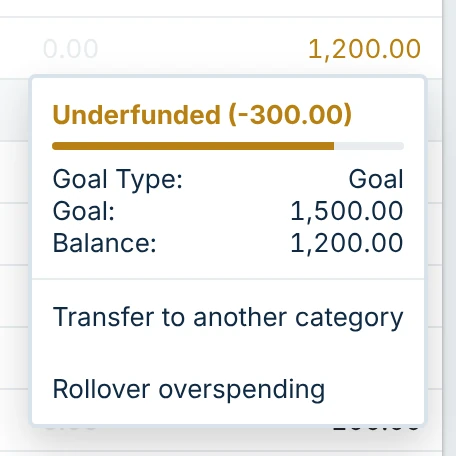
Long-term goals change how the budget indicator works. Instead of being based on the budgeted amount, the balance coloring will indicate how much progress you have made toward a desired target. Importantly, if you have met your projected budget for the month but are shy of your long-term goal the balance will remain orange.
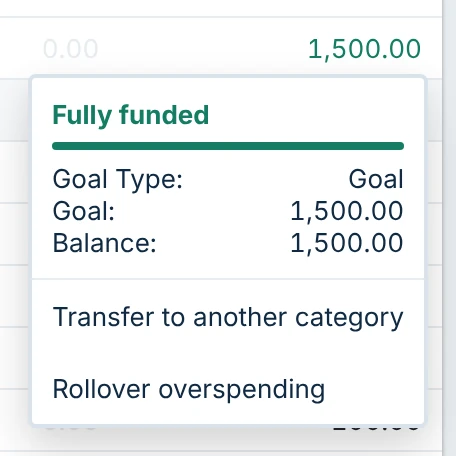
Once you hit your goal, the balance will turn green. Note that if you remove funds and fall short, it will turn orange again.
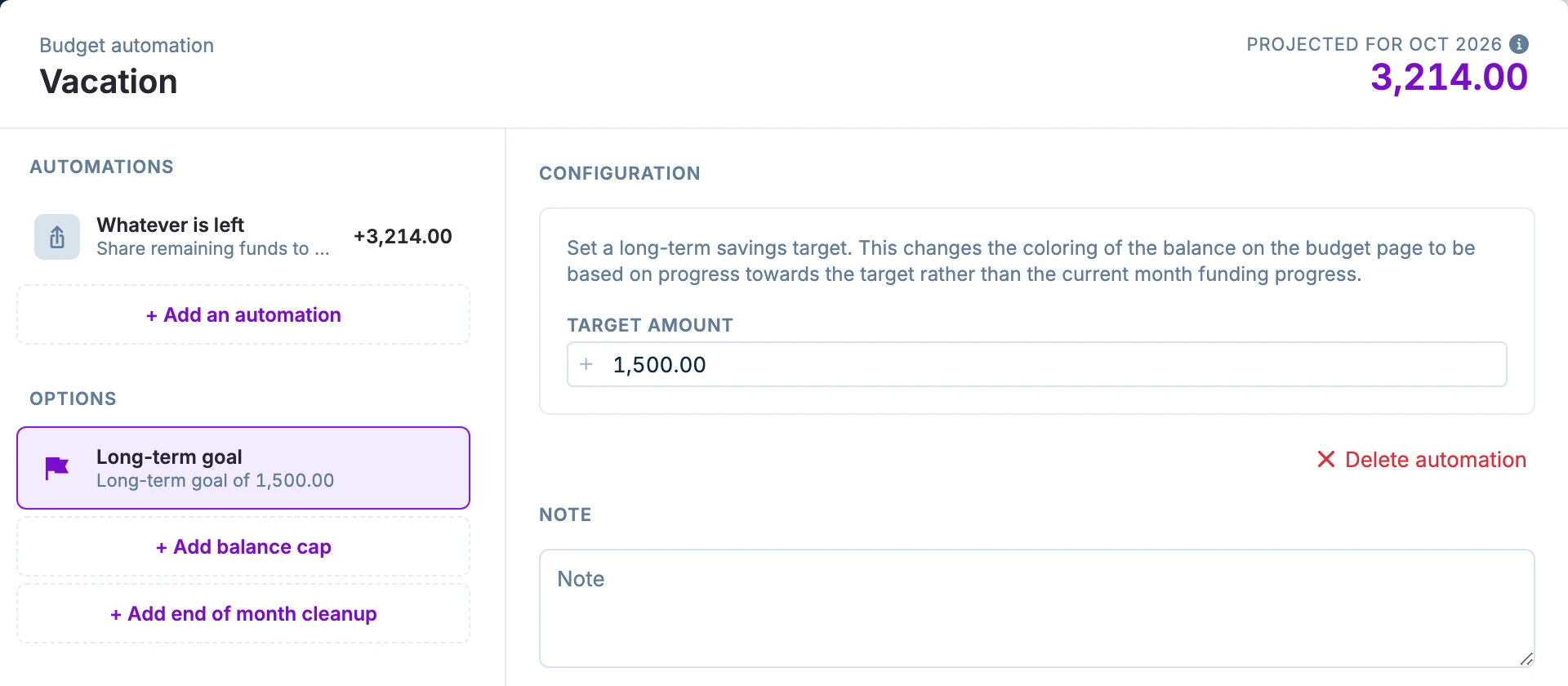
- The long-term goal does not automatically add funds or stop funds from being added after the goal has been hit. To stop automated funds from being added after you reach the goal, add a Balance cap to the category.
- You can have a long-term goal without any other automations and budget manually toward your goal. You will still need to run the automations on the category to see the indicator and goal status.
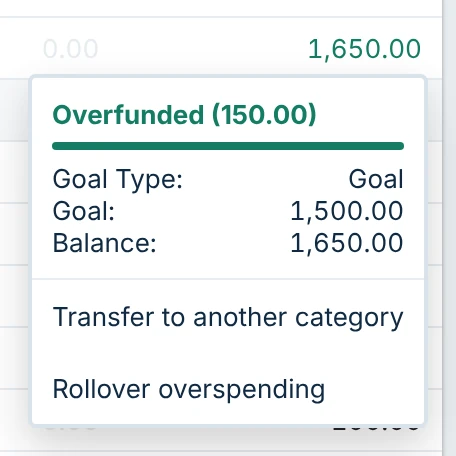
The goal status shows your progress:
Running automations
How to apply the automations
Apply all automations
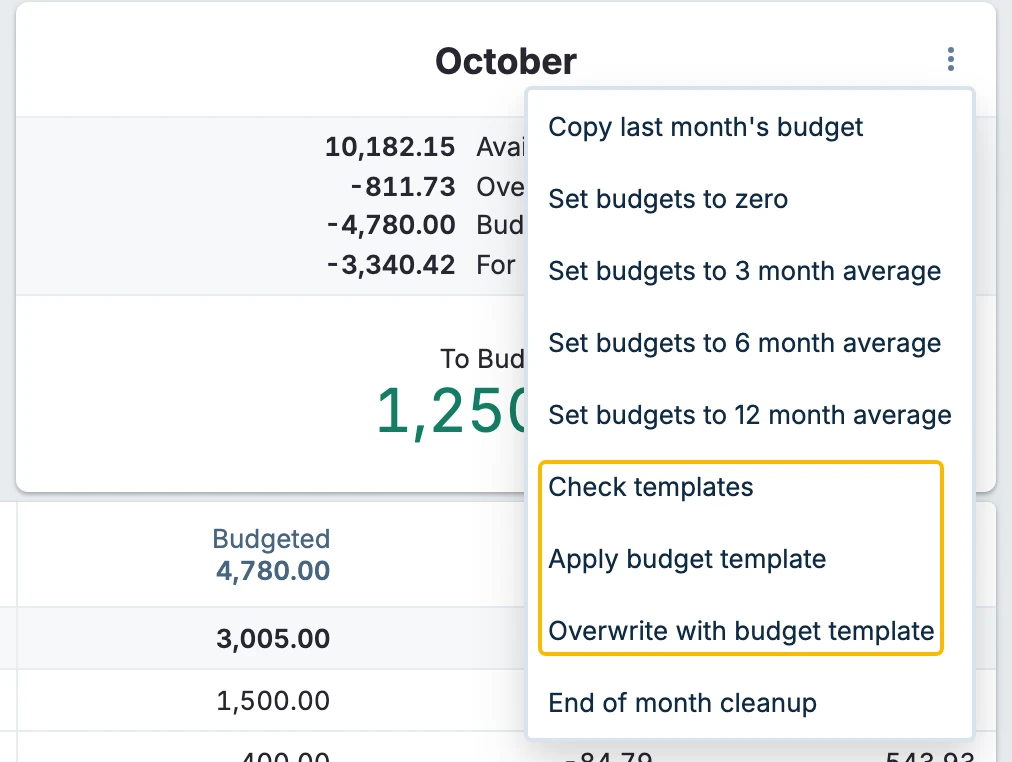
In the budget header menu you will see the following options:
-
Check templates will test all automations.
-
Apply budget template will run all automations in categories that currently have 0.00 budgeted. This will leave any existing budget amounts intact.
-
Overwrite with budget template will fill in all budget cells using automations and overwrite any already existing budget amounts. This is the recommended method if you are using priorities greater than 0.
Apply automations selectively
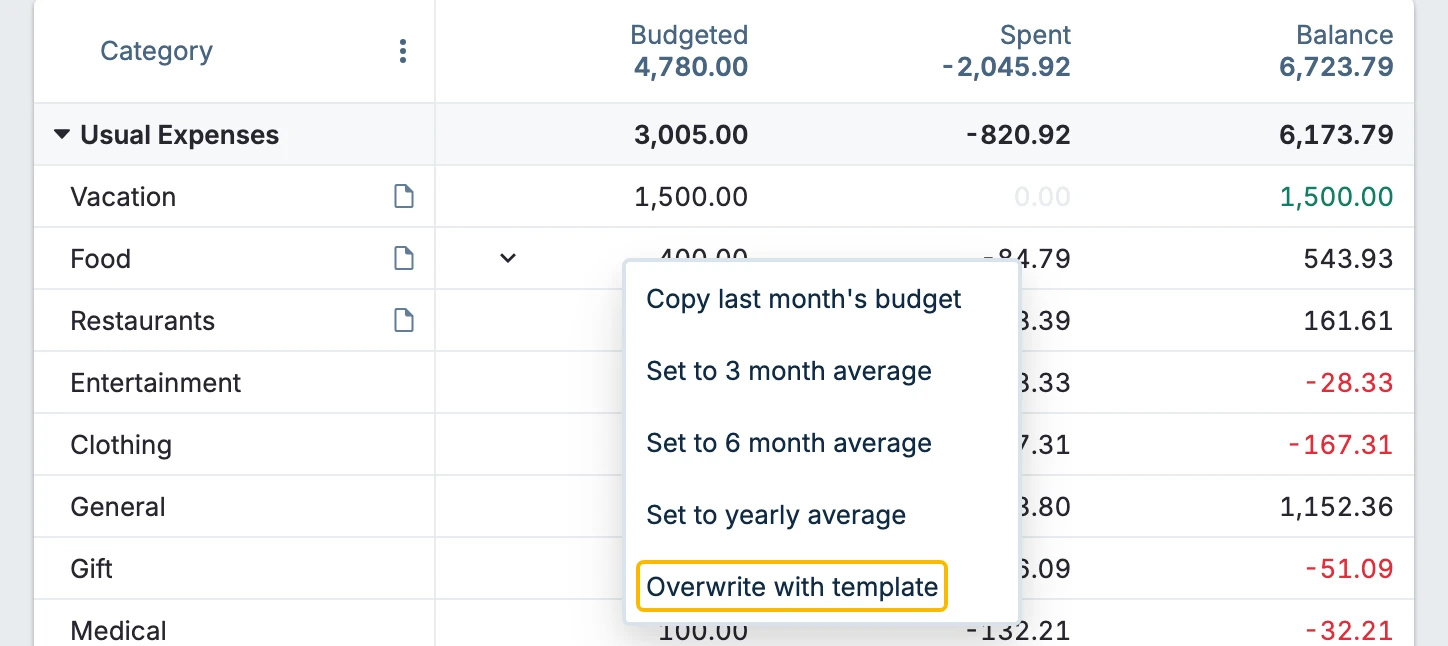
- Single Category: Use the "Overwrite with template" option shown below from the budget field drop-down menu to apply automations to just that category. This will overwrite any existing budgeted amount.
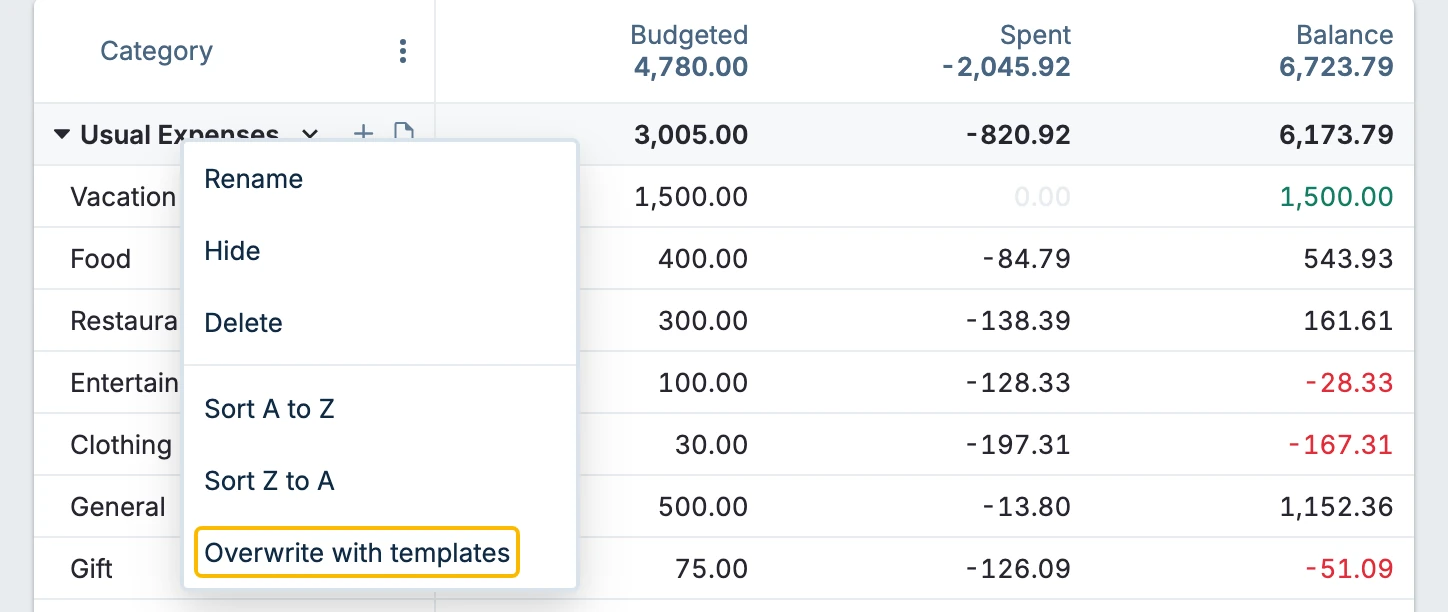
- Apply automations to a single category group: Use the "Overwrite with templates" option shown below from the category group drop-down menu to apply all automations to categories in a specific group. If you are viewing multiple months, it will apply them to the month furthest to the left in your budget view. This will overwrite any existing budgets in the categories in the group.
- Fund a single goal from To Budget (envelope budgeting only): If a category is underfunded and you have money left in To Budget, click the category balance and choose "Fund goal from To Budget". This adds the missing amount to the category's budget, but never more than what is left in To Budget for that month. Unlike "Overwrite with template", it never lowers the budgeted amount. It is not offered for long-term goals. This normally also reduces To Budget in the following months. If the category is overspent and does not use rollover, the added budget can offset the overspending carry-forward, so the following month's To Budget can remain unchanged for that amount.
End of Month Cleanup
At month end, you can use cleanup automations to sweep up the surplus from categories that you overfunded and automatically cover any overspent categories and then distribute any leftovers to other categories, such as savings, vacation, or debt payoff.
Examples below will help demonstrate the power of End of month cleanup.
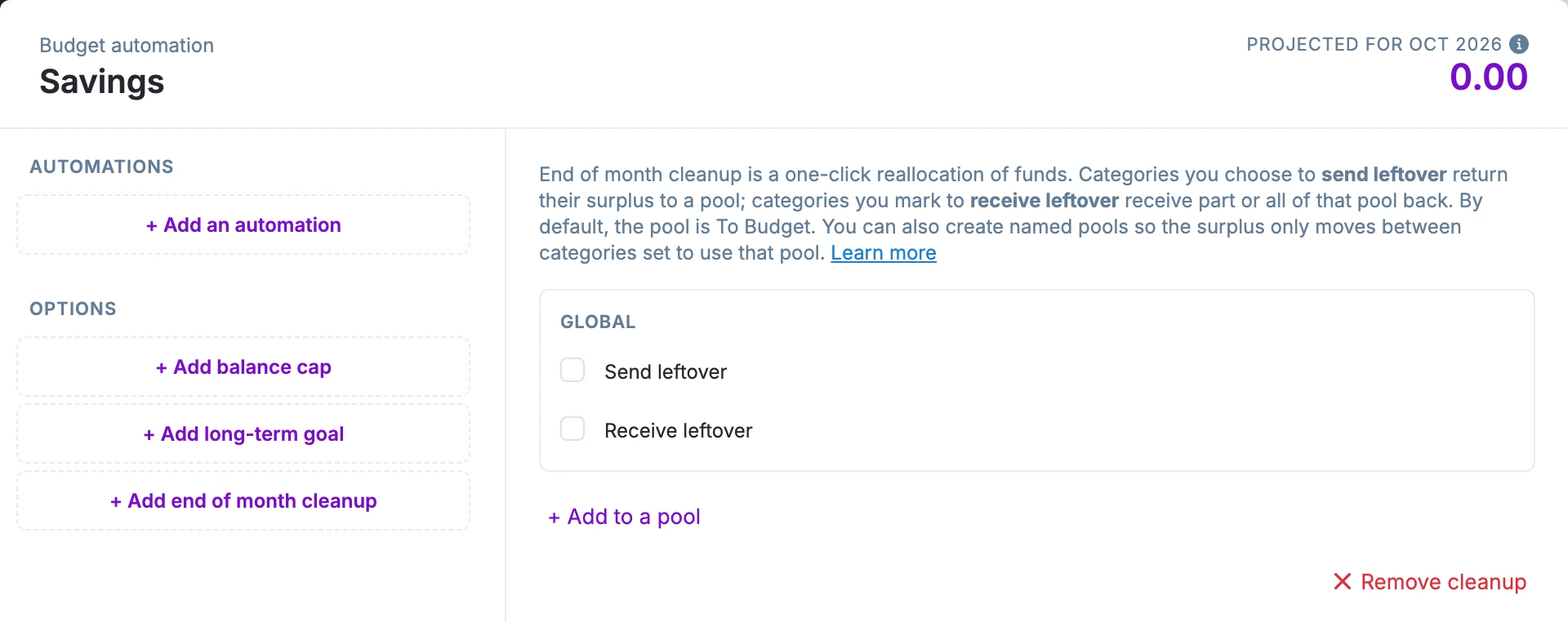
Global cleanup
Global cleanup automations use To Budget as the pool.
Send leftover. These are source funds. Cleanup sweeps up the category's leftover funds and sends them to To Budget.
Receive leftover. These are sink funds. After overspent categories are covered, funds leftover in To Budget are distributed to the category by weight.
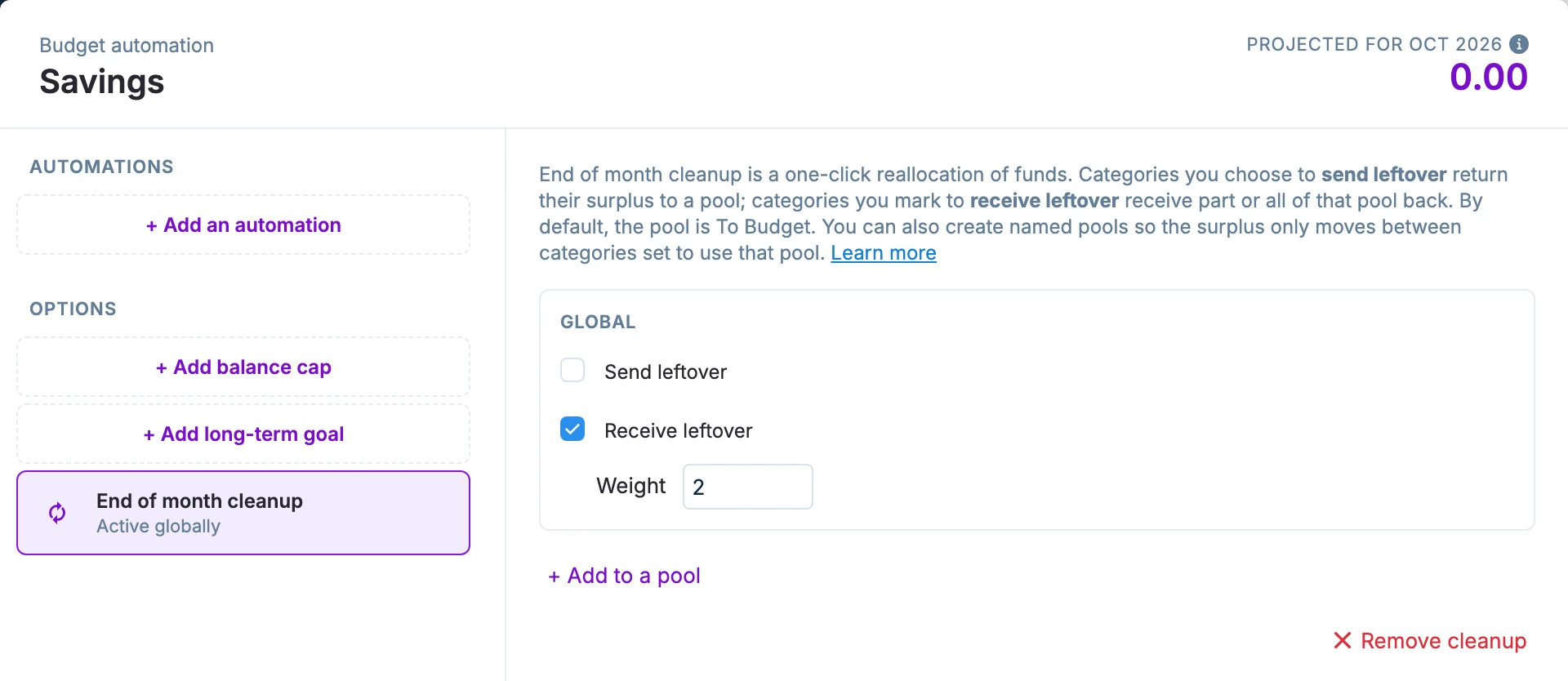
Named pools
Named pools can be defined to target certain categories for more refined control. Create as many named pools as you need by using different pool names.
+ Add to a pool
Pick from a list of previously named pools or type in the field to get an option to create a new named pool.
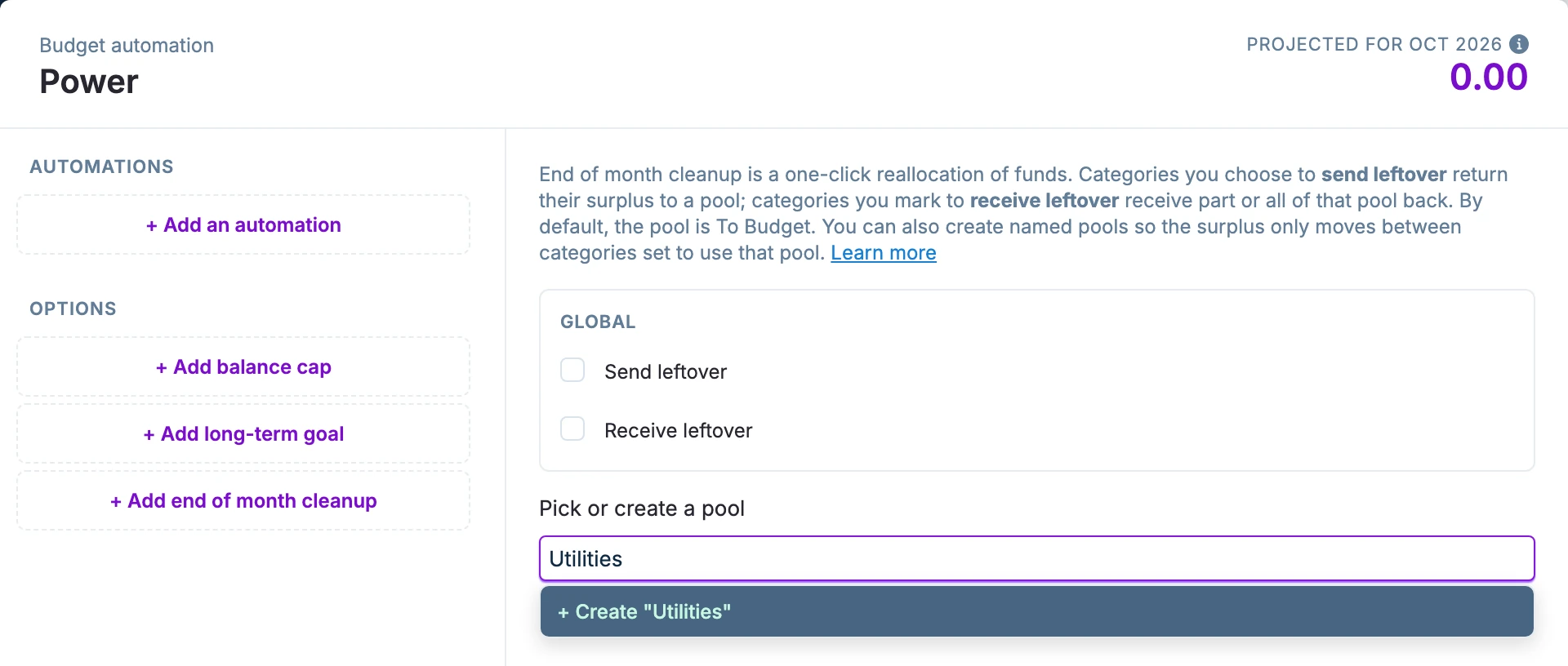
Send leftover to pool (source). This sends surplus category funds to the named pool to be distributed.
Receive leftover from pool (sink). After overspent categories in this named pool are covered, leftover funds in the pool are distributed by weight to the categories in the pool.
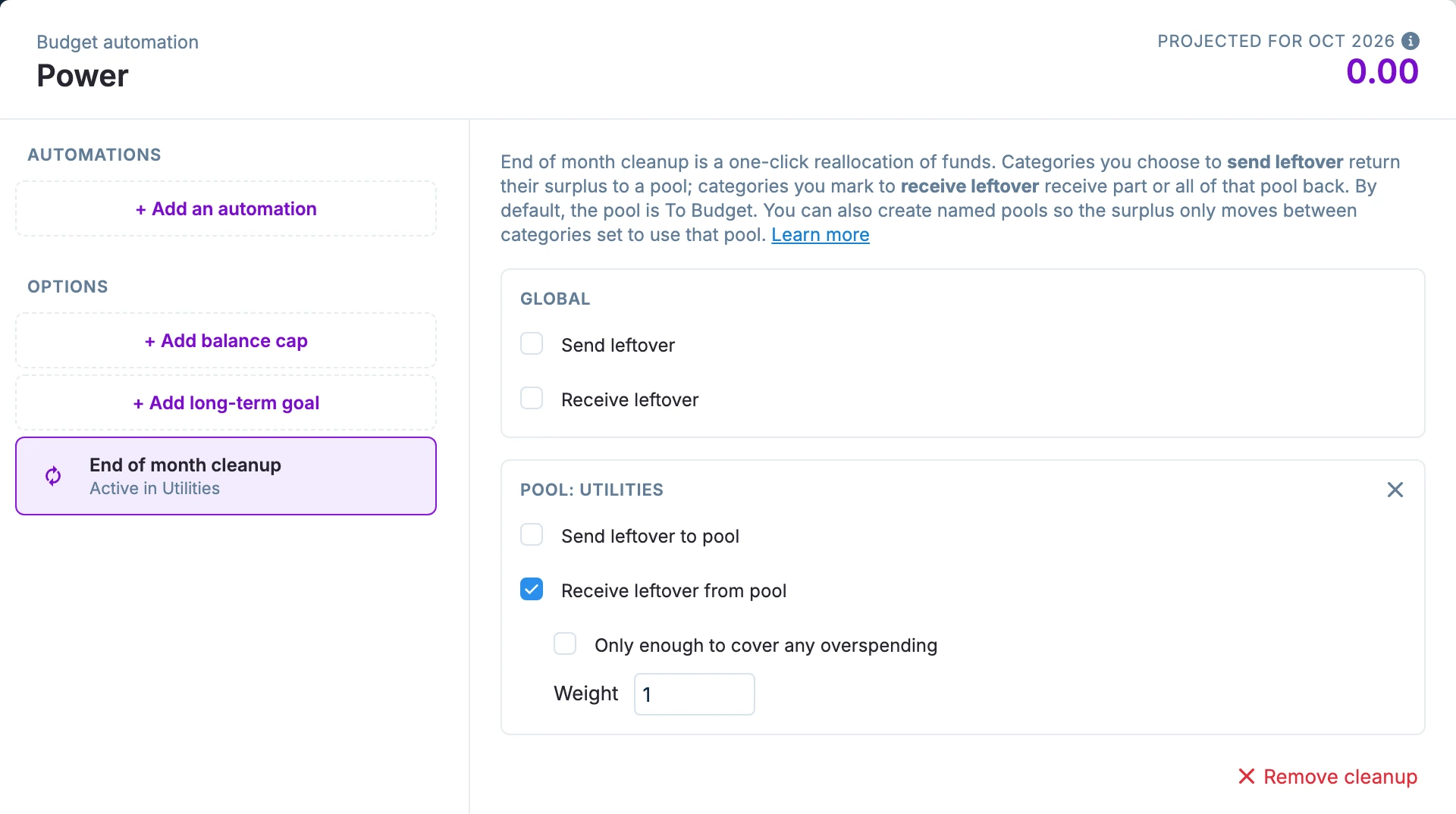
Enable Only enough to cover any overspending to restrict the category from receiving leftover pool funds.
Running end of month cleanup
End of month cleanup is run from the main menu in the Budget Header.
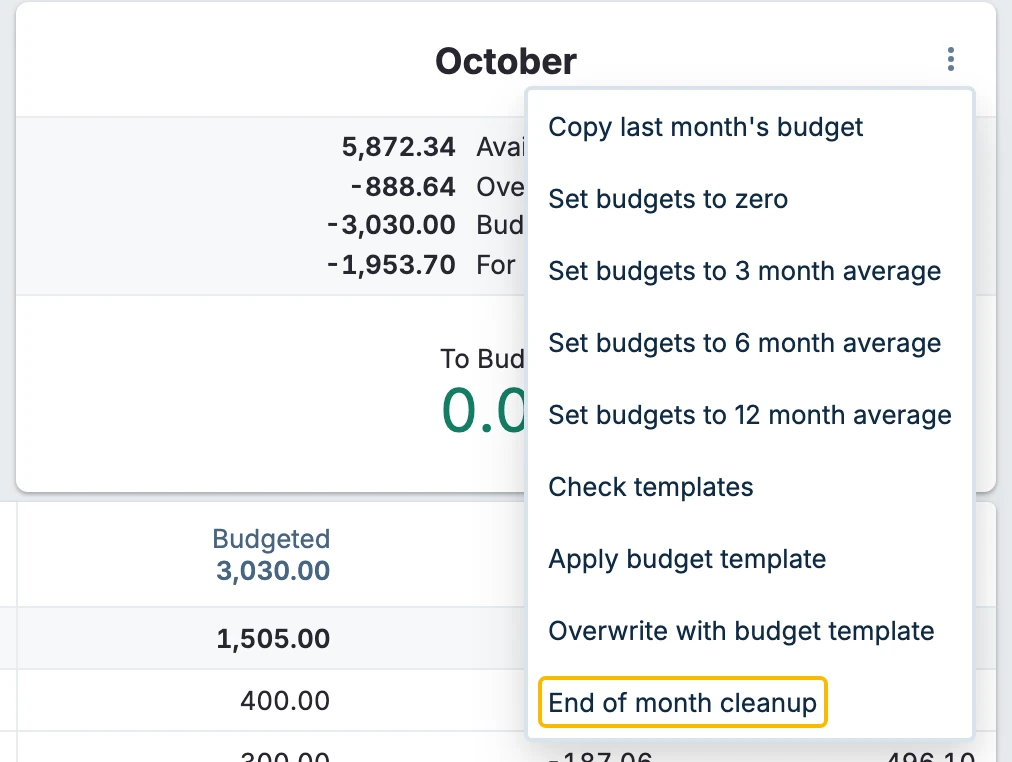
After clicking End of month cleanup, cleanup works sequentially as follows:
- All named pools are run first.
- Funds in pool source categories are swept up into the pool.
- Overspent categories in the pool are filled with pool funds, if possible, then
- Leftover pool funds are distributed by weight within the pool.
- If no categories in the pool are set to receive funds from the pool, leftover funds go to To Budget.
- Global cleanup runs next.
- Funds in Send leftover categories are swept into To Budget.
- Overspent categories are covered with funds from To Budget. If there are insufficient funds to do this, cleanup covers as much as it can. Categories using Rollover Overspending are ignored.
- Categories set to Receive leftover are found and cleanup distributes the leftover To Budget funds by weight.
Cleanup does not respect Balance cap. Funds will be distributed based on weight and a category may be filled above the cap. To keep the excess, use Retain existing funds over the cap or it will be removed the next time budgeting automation is run.
Calculating Weights
Cleanup uses the sum of the weights of the sink categories to determine how much to distribute to each sink category.
distributed_amount = available_funds / sum_of_weights * category_weight
Suppose there are 5 categories that are identified to receive leftovers with the following weights:
- Category a: 1
- Category b: 1
- Category c: 2
- Category d: 2
- Category e: 4
The sum of the weights is 1 + 1 + 2 + 2 + 4 = 10
The result will be:
- Categories a and b will receive
1 / 10or 10% of the pool - Categories c and d will receive
2 / 10or 20% of the pool - Category e will receive
4 / 10or 40% of the pool
Examples
I leave money in my To Budget balance all month, can this help cover my overspending? Yes!
- If you don't use any cleanup automations, you can still run End of month cleanup and the script will try to cover overspending using the available To Budget amount. This doesn't pull funds from any category and only covers overspending with To Budget.
I want to recover money from my Dining Out category because I always over budget and use that money to cover my overspent categories.
- Use Send leftover in the Dining Out category. When clicking End of month cleanup, the extra money will be returned to To Budget and be used to cover the overspent categories. If there is any leftover, it will remain in To Budget.
I'm behind on saving for our big Holiday celebration and would like to catch up faster. I would also like to save a little extra for vacation. Of any extra money I can find, I would like to put 1/3 in savings for the Holiday and 2/3 for vacation.
- Use Send leftover in the categories where you can find some extra money.
- Use Receive leftover with a weight of 1 in your Holiday Celebration category.
- Use Receive leftover with a weight of 2 in your Vacation category.
I want to pay down my debt as quickly as possible. I have a large Debt category with rollover overspending set. I already budget for more than the minimum payment, but I want to additionally add all extra money I can find.
- Use Send leftover in the categories where you can find some extra money.
- Use Receive leftover in your debt category and in no other.
All source funds will be used to cover your overspent categories first and then the remaining money will go to the Debt category to add extra to your payment.
I have a buffer category specifically meant to cover overspending for the month. Can I use this tool with that category? YES!
- Use both Send leftover and Receive leftover in your buffer category.
Cleanup will remove all of your buffer funds, cover your overspending, and put your buffer funds back into the buffer for next time. You can also add a Refill to cap automation to this category so you can fill it back up next month!
My utility bills fluctuate from month to month, but are always less than $500. Can I shift that $500 around in just the utility categories? Yes!
Method 1:
One way to do this is to have a Utilities Holding category with $500 budgeted.
- Use + Add to a pool and create a named pool for this category.
- Enable both Send leftover to pool and Receive leftover from pool, weight 1.
Have separate categories for your various utilities, but don’t budget for them (power, gas, water, etc).
- For each, use + Add to a pool.
- Choose the same named pool you added to the Utilities Holding category.
- Use Receive leftover from pool and check the box Only enough to cover any overspending.
Cleanup will cover the overspending from the Utilities Holding category and return any remaining funds back to the holding category.
Method 2:
Another way to accomplish this is to budget what you think you will spend for each of the utilities in each category. For example:
- Power - $200
- Water - $100
- Gas - $150
- Trash - $50
In the first category, create a named pool and use both Send leftover to pool and Receive leftover from pool, weight 1.
In the rest of the categories, choose the same named pool and again use both Send leftover to pool and Receive leftover from pool, weight 1.
When cleanup runs:
- Any remaining funds from each utility category will be pooled.
- The pool will be used to fund any overspent utility categories.
- Leftover pool funds will be evenly distributed to carry over to the next month.
Use different leftover weights if you would like! To match the above budget, you might use 20, 10, 15 and 5.
If you want all of the leftover to go to To Budget, enable Only enough to cover any overspending in all of the pool categories!