Settings
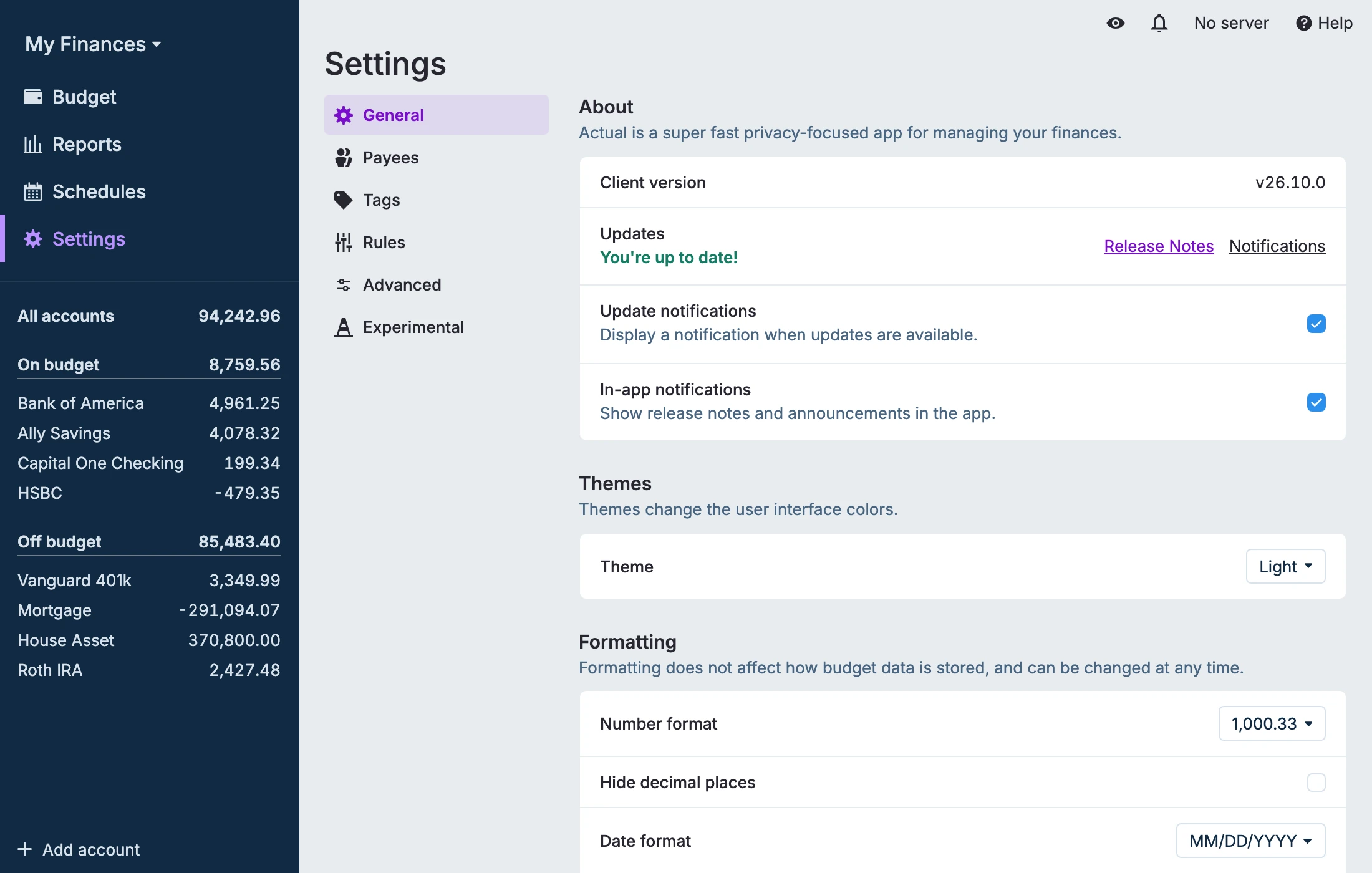
The Settings screen in Actual provides you with a number of options for managing the look and feel of your budget along with some more system specific settings. Most settings are self-explanatory.
You can access the Settings screen by clicking the down arrow by your budget name or by clicking Settings at the bottom of the sidebar. Settings are split into pages that you switch between using the navigation on the left of the Settings screen.
Notifications
The option Display a notification when updates are available shows a notice in the app when a new version of Actual is released.
The option Show in-app notifications (release notes and announcements) controls whether Actual shows you news from the project inside the app: the notification bell in the top bar, the Notifications page, and the message that appears after an update. It is on by default and applies to the device you change it on. See Notifications for the full guide.
Themes
Themes change the user interface colors. Pick from the built-in Light, Dark, Midnight, or Auto themes, or install a community-built theme from the catalog. See Custom Themes for the full guide.
Sidebar
By default the sidebar shows Budget, Reports and Schedules. The Sidebar section lets you choose which pages appear there, drag them into order, and pick the Start page, the page Actual shows when it opens or when you go to its home page. Pages that are switched off, such as Payees, Rules and Tags, are listed in the Settings navigation instead. These settings are stored in your budget file, so they apply on every device that opens it. The mobile layout does not use these settings yet, but support for it is planned.
Formatting
The formatting options allow you to select the following:
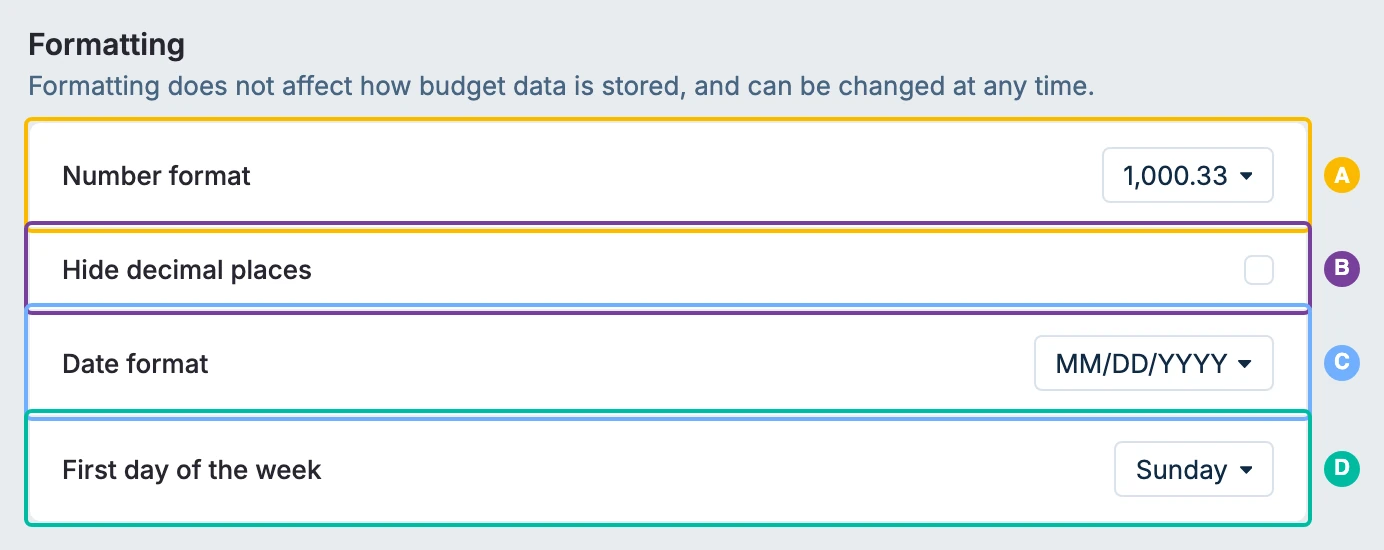
- A. Number format. Your preferred number format.
- B. Hide decimal places. Show whole amounts only.
- C. Date format. Your preferred date format.
- D. First day of the week. Controls how weeks are grouped.
Language
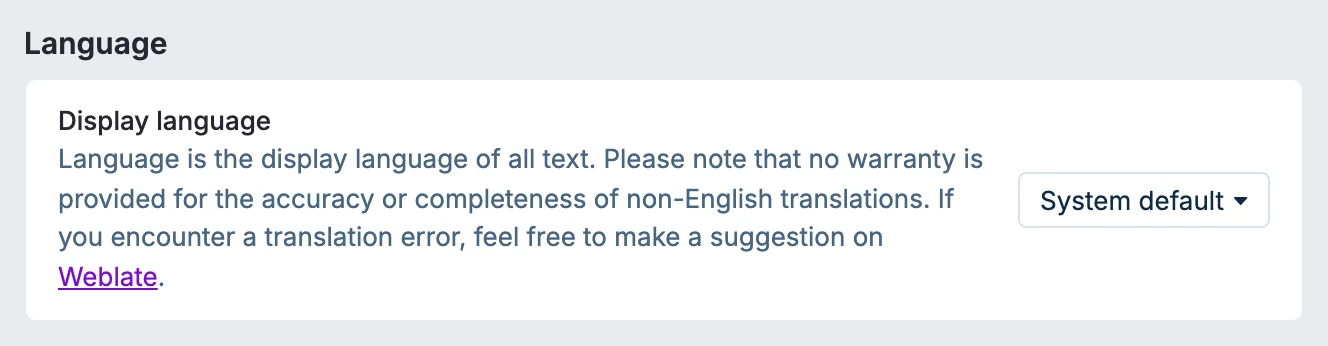
The language choice alters the display language of all text. If you encounter a translation error, feel free to make a suggestion on Weblate.
Authentication Method
OpenID can be enabled here. Learn more

Encryption
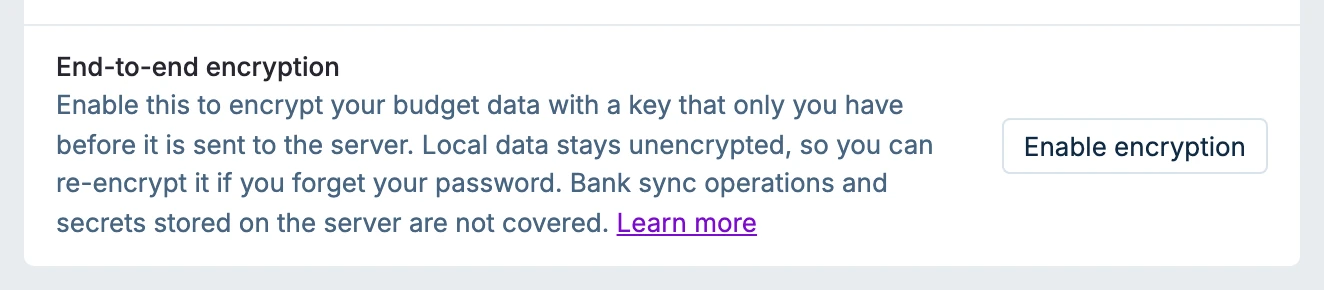
End-to-end encryption allows you to encrypt your budget data on the remote server with a password. If you don't trust the server's owners, enable this setting to encrypt your budget data. Note that bank sync tokens are stored separately on the server and are not covered by this encryption. Learn more
Budgeting Method
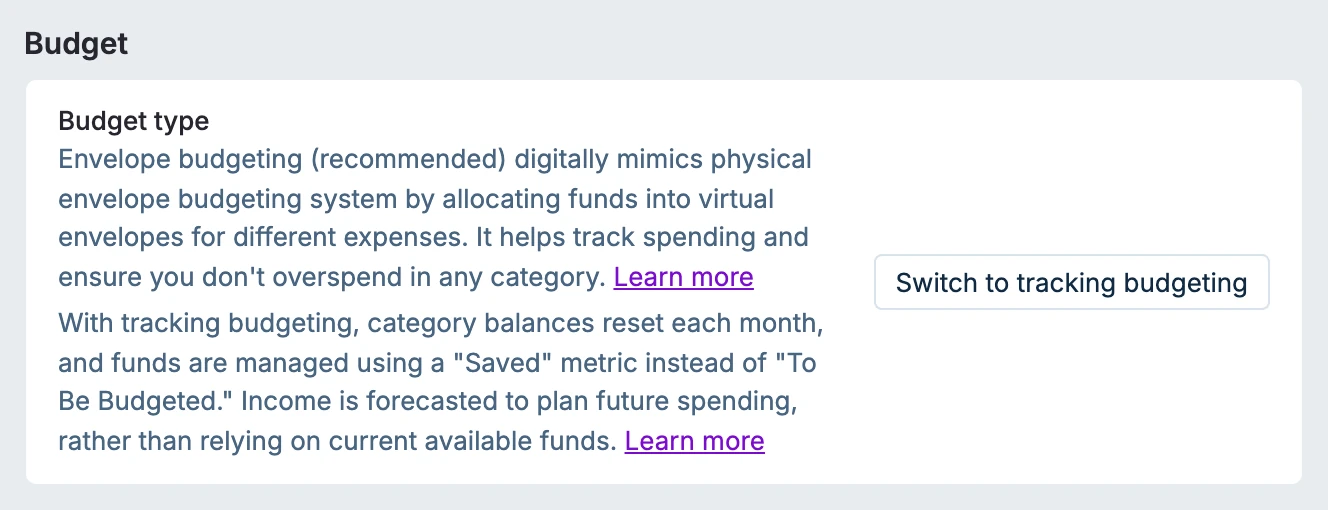
Either Envelope or Tracking Budgeting methods are available in Actual. Envelope Budgeting is recommended and most of the documentation refers to this method.
Learn more about Envelope Budgeting
Learn more about Tracking Budgeting
Export
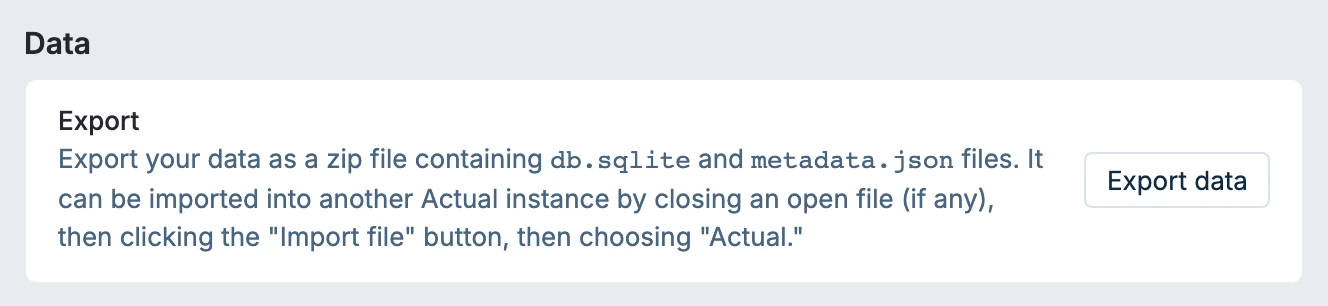
This section allows you to download a .zip archive of all of your server data for easy backup or migration. Learn more
Advanced Settings
Click Advanced in the settings navigation to open the advanced section of the Settings page.
Budget ID
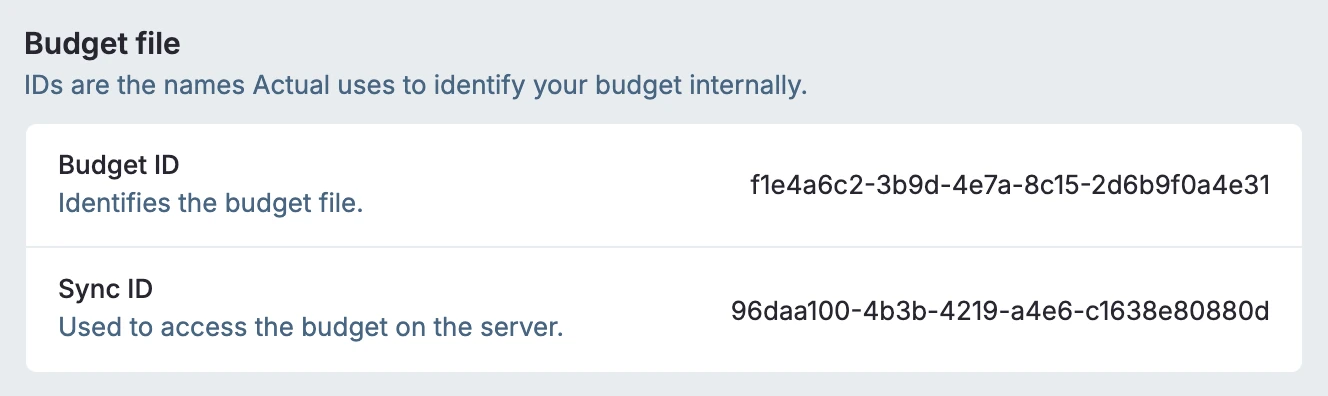
You can have many budgets per install of Actual, each has it's own IDs. IDs are the names Actual uses to identify your budget internally. The Budget ID is used to identify your budget file. If you are using a server, the Sync ID is used to access the budget on the server.
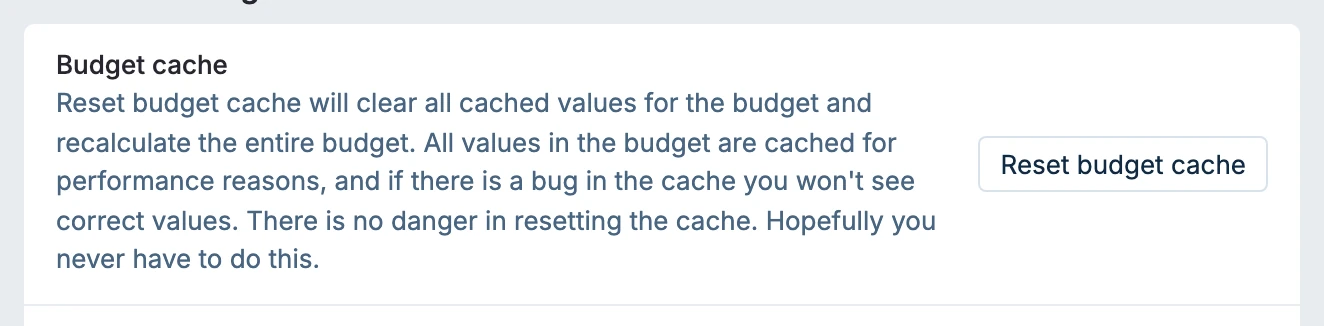
Reset Budget Cache
Reset budget cache will clear all cached values for the budget and recalculate the entire budget. All values in the budget are cached for performance reasons, and if there is a bug in the cache you won't see correct values. There is no danger in resetting the cache.
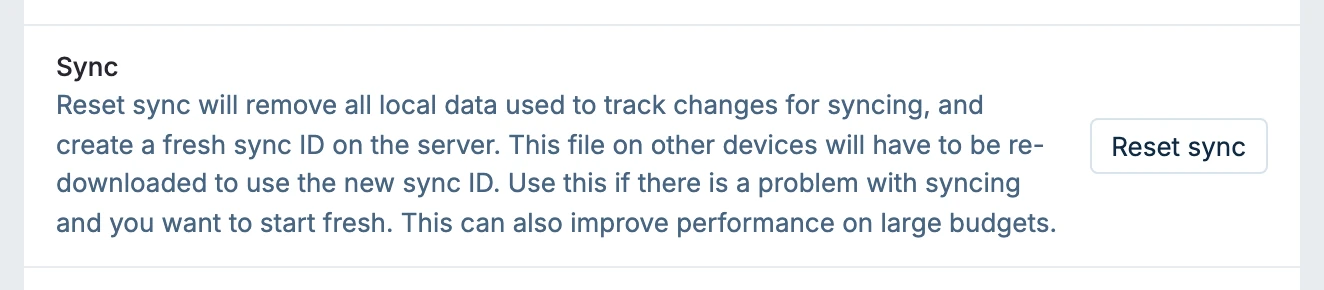
Reset Sync
Actual's sync function is quite complicated and is covered in detail here. Use this if there is a problem with syncing and you want to start fresh.
Note: Resetting sync will also significantly reduce your budget file size. This is because Actual stores all mutations in the budget file by default, causing it to grow over time. When you reset sync, all those historical changes are compressed into a single file.
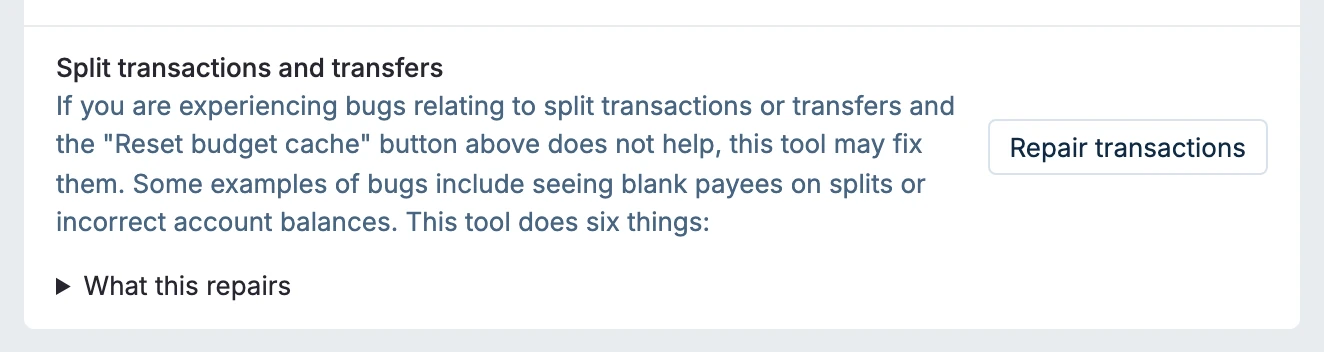
Repair Split Transactions
If you are experiencing bugs relating to split transactions or transfers and the "Reset budget cache" button above does not help, this tool may fix them.
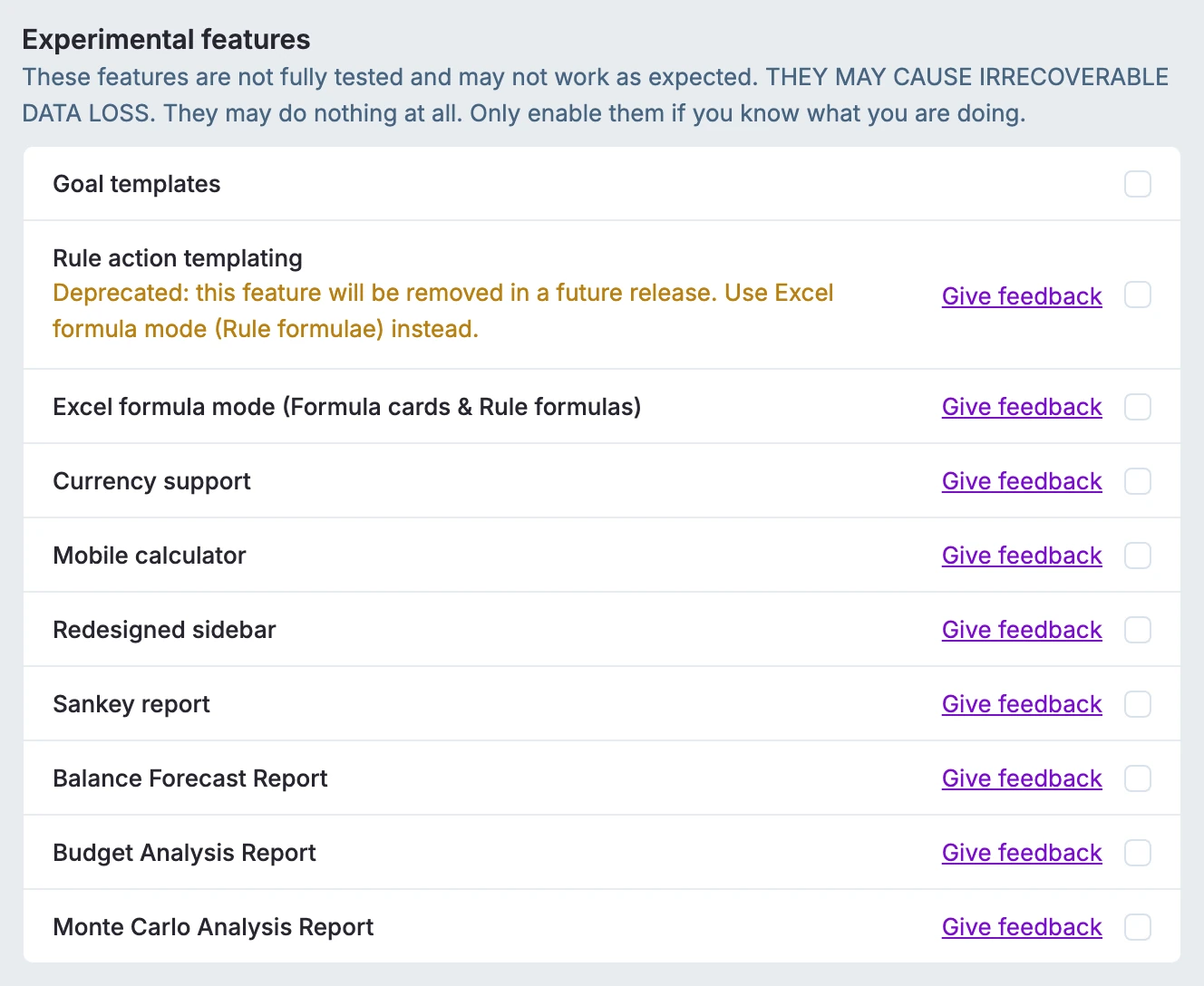
Experimental Features
This section is where you can enable features that are still in development and testing. See Experimental features for more information.