Payee Locations
This is an experimental feature. That means we're still working on finishing it. There may be bugs, missing functionality or incomplete documentation, and we may decide to remove the feature in a future release. If you have any feedback, please comment on the dedicated feedback issue or post a message in the Discord.
Payee Locations let Actual remember where you shop. Once you save a location for a payee, Actual can suggest nearby payees in the payee autocomplete the next time you record a transaction at that spot. It can also fill in the nearest payee with a single tap. This is handy for places you visit often, such as a local grocery store or coffee shop.
Payee Locations is only available on the mobile transaction screen, not the table-based ledger used on larger screens and desktops.
Enabling Payee Locations
Payee Locations is an experimental feature, so you need to turn it on before the location buttons appear. Open Settings, click Show advanced settings, and enable Payee Locations under Experimental Features.
Requesting Location Access
Before you can use any of the payee location functionality, you need to give your browser access to your location. Begin entering a new transaction and tap the Request Location button in the payee field. Your browser will then prompt you to allow access.
If you decline the geolocation permission prompt, Actual cannot ask again. You will need to update the location permission for the site manually in your browser settings; the exact location of this setting varies from browser to browser.
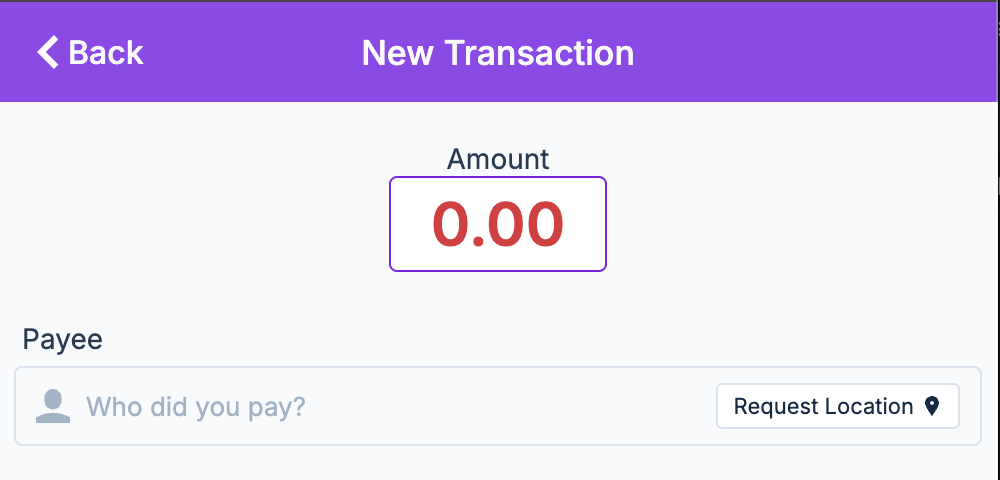
Saving a Payee Location
- Begin entering a new transaction.
- Enter or select a payee.
- Tap the Save geolocation button that appears in the payee field.
- Continue entering the rest of the transaction details.
- Save the transaction.
The Save button only appears when no existing location for this payee is within 500 meters, so if you do not see it, a nearby location may already be saved. You can save more than one location for the same payee, which is useful for a business with several branches, such as a coffee shop chain you visit in different parts of town.
Your location is only captured when you tap Save. It is stored in your budget like any other data, so it syncs across your own devices if you use a sync server, and it is never sent to any third party.
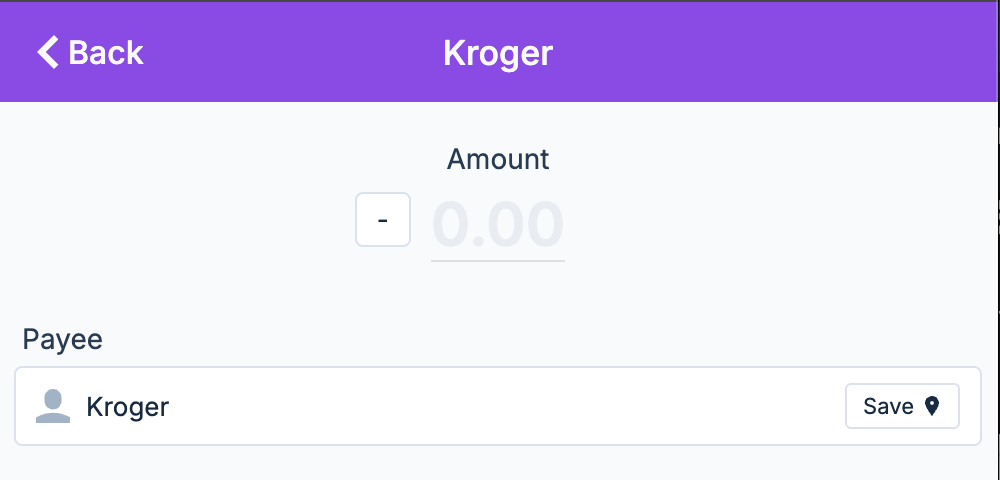
Using the Nearest Payee
Once you have saved one or more payee locations, Actual can suggest the nearest one as you enter a transaction, or set it for you with a single tap.
- Begin entering a new transaction.
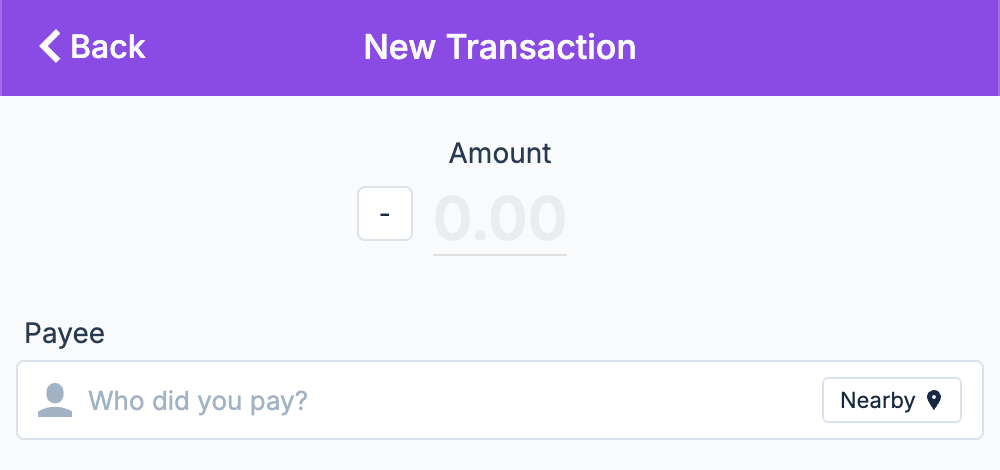
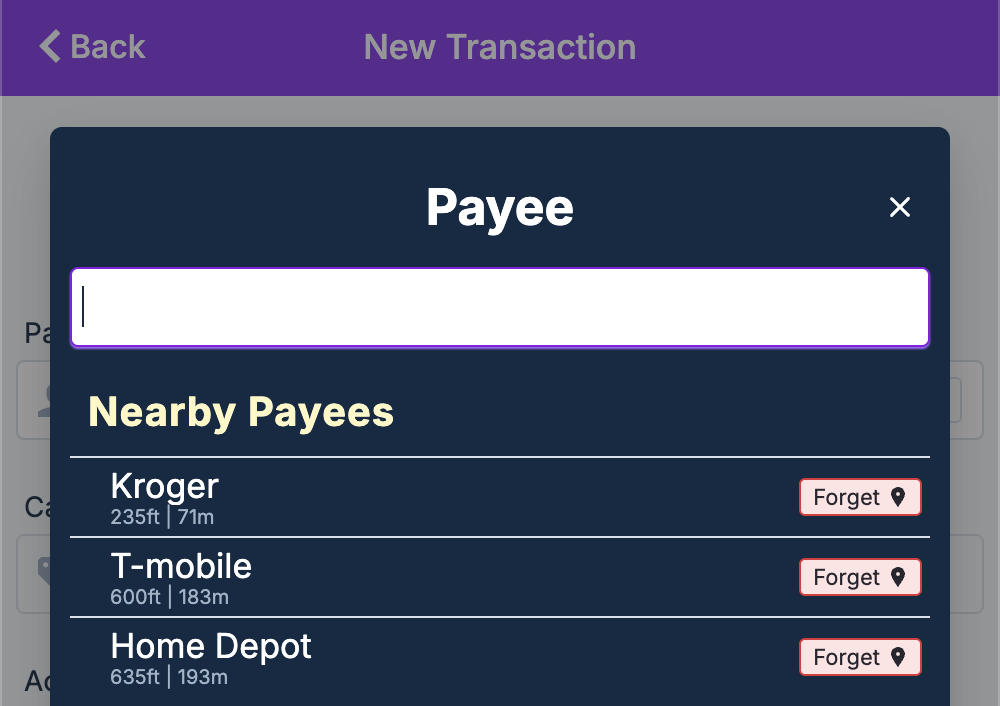
- If any saved payees are within 500 meters of your current location, a Nearby Payees section appears in the payee autocomplete, and a Nearby geolocation button appears in the payee field.
- Either select a payee from the Nearby Payees section of the autocomplete, or tap the Nearby button to set the closest matching payee automatically.
- Continue entering the rest of the transaction details.
- Save the transaction.
Forgetting a Payee Location
There is no dedicated screen for managing all of your saved payee locations. Instead, you can remove a location while you are at or near it:
- Begin entering a new transaction at or near the payee location you want to remove.
- Tap the payee field to open the payee autocomplete.
- Tap the Forget option next to the payee entry (shown in the autocomplete screenshot above).
Troubleshooting Location Permissions
If the location prompt never appears, your browser may not consider the connection secure. Browsers only allow access to sensitive APIs like geolocation in secure contexts. When you reach your server over an IP address such as http://192.168.x.x, the connection is plain HTTP rather than HTTPS, so the browser silently refuses to even prompt for location permission. Serving Actual over HTTPS resolves this.