Tags
Transactions can be easily flagged and identified in the account register by tagging them in their notes.
An example would be to tag all transactions for a trip with #Vacation2025
Syntax
- A tag is a string of any characters (except
#and whitespaces) prefixed by the#symbol; it can be added anywhere within the Notes field of a transaction. - Tags cannot contain whitespaces (spaces, tabs, etc.). Use
#camelText,#dashed-entriesor#underscored_separatorsinstead. - It is possible to have multiple tags for a single transaction.
- Tags are case-sensitive, meaning that
#tagand#TAGare different. - To use the
#symbol in the Notes field without tagging, you can escape it by inputting it twice:##do-not-tag-this.
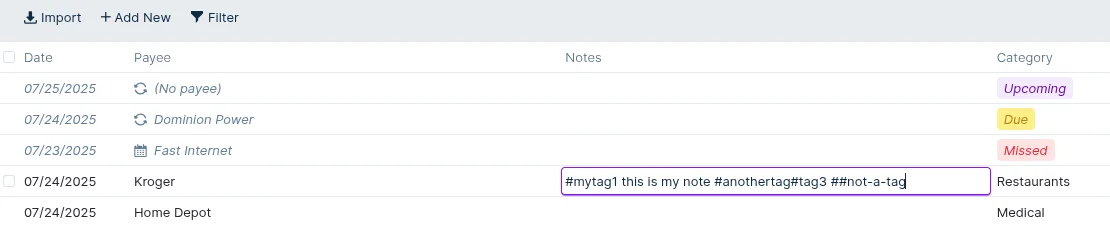
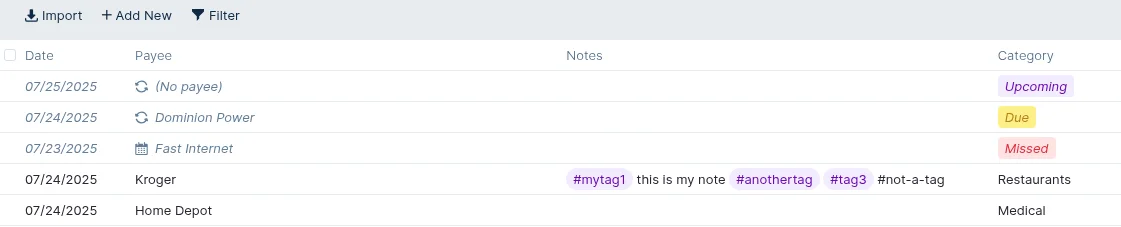
Filter Transactions
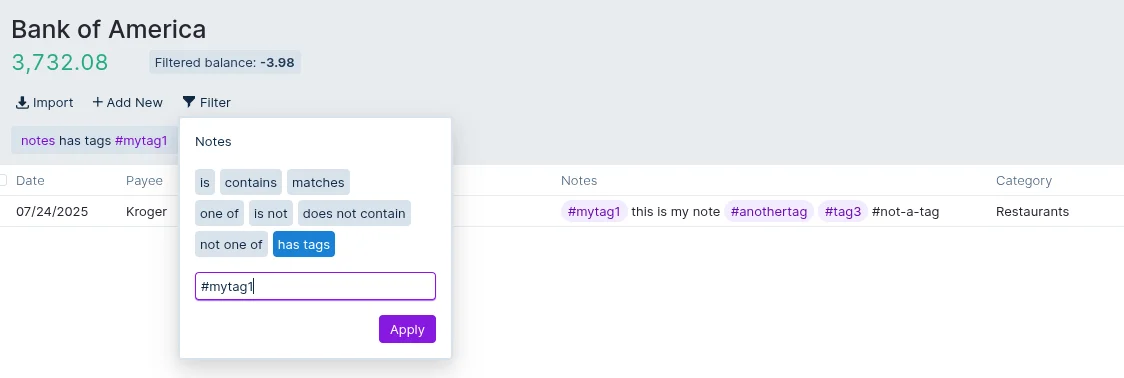
To view transactions with a given tag, you can:
- Use the View Transactions button in the Tag management page, in the sidebar.
- Click on a colored tag in the account register.
- Use the
has tagsfilter on the Notes field:
Manage Tags
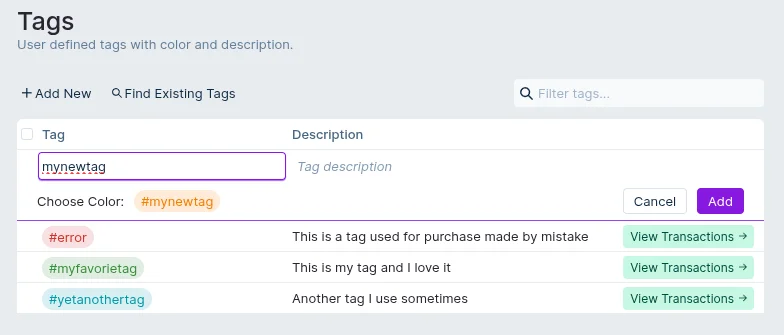
The Tag management page can be found in the sidebar under More. Here you can perform the following actions:
- Change the color. Tags use a default color defined in the theme. Change the color of any tag by clicking on the tag to bring up a color picker.
- Add New tags. Do not include the
#prefix when adding tags here; it will be added automatically. If the tag already exists, this will update its color. - Find Existing Tags searches for tags already used within transactions and adds them to the list of managed tags.
- Add a description by clicking in the description field.
- View Transactions which use a given tag.
- Rename a tag from the context menu (right-click menu), or from the selection menu when exactly one tag is selected. Renaming also rewrites the hashtag in every transaction note that uses it. Tag names cannot contain spaces or
#, and cannot match an existing tag. - Use the context menu (right-click menu) to delete a tag from this page. It will not delete the tag from the transaction notes.