Split Transactions
Oftentimes a single transaction covers multiple categories. For example, a trip to the grocery store might include food, household supplies, and a gift card. Rather than creating separate transactions, you can split a single transaction into multiple child transactions, each assigned to its own category.
Creating a Split Transaction
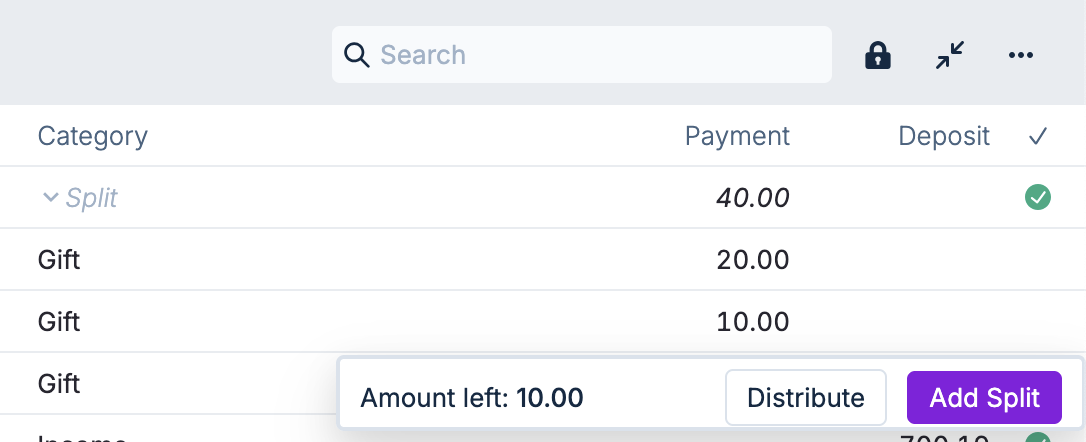
- Click on the category of a transaction, and select the Split Transaction option. A new row will appear below the original transaction alongside a set of buttons for managing your split transaction.
- Add more splits of the original transaction as needed by clicking the Add Split button.
- Assign a category and amount to each split. The sum of the amounts of all child transactions must equal the amount of the parent transaction.
Distributing the Remainder
The Distribute button works in two different ways depending on the state of the child transactions.
Even Distribution
If at least one split is empty, clicking Distribute divides the remaining amount evenly among the empty splits.
For example, if a $50.00 transaction has one split for $20.00 and two empty splits, clicking Distribute assigns $15.00 to each empty split.
Proportional Distribution
If all splits already have amounts entered in, clicking Distribute divides the remaining amount proportionally based on the total of the child transactions. This can be useful when dividing taxes among different categories in a single transaction.
For example, consider a $40.00 transaction split into two.
| Split | Before | Proportion | Added | After |
|---|---|---|---|---|
| A | $20.00 | 2/3 | $6.66 | $26.66 |
| B | $10.00 | 1/3 | $3.34 | $13.34 |
| Total | $30.00 | $10.00 | $40.00 |
Each split receives a share of the remainder proportional to its existing amount relative to the current total of the child transactions ($30.00).
When the remainder can't be divided evenly, the remaining cents are distributed one-by-one to the child transactions.
Unsplit Transactions
Right-click any splits of the parent transaction and click Unsplit 1 Transaction to convert it into a regular transaction. You can also select and unsplit multiple rows at the same time. The total amount of the original transaction will be adjusted accordingly.
Right-click the original transaction and unsplit it to convert all the splits into regular transactions. Alternatively, to convert a split transaction back into a regular transaction, delete all the splits.